

Lana Network integration
Set up Lana Network with Skro’s prefilled traffic source template, track campaign and placement data, and report conversions back through an S2S postback.
Use Skro’s Lana Network template to track visits from Lana Network, an advertising network for adult sites. The template fills in the tracking parameters and the conversion postback URL. Add your advertiser token before saving the source.
Before you start
Have a Skro workspace, an HTTPS tracking domain, an offer that can report conversions to Skro, and a Lana Network advertiser account. In the Lana Network dashboard, open Postback and generate your private postback token. You’ll use the token in the outgoing postback URL in Skro. Keep it out of your ad’s landing URL.
Select the Lana Network template
- Open Traffic Sources and select Create.
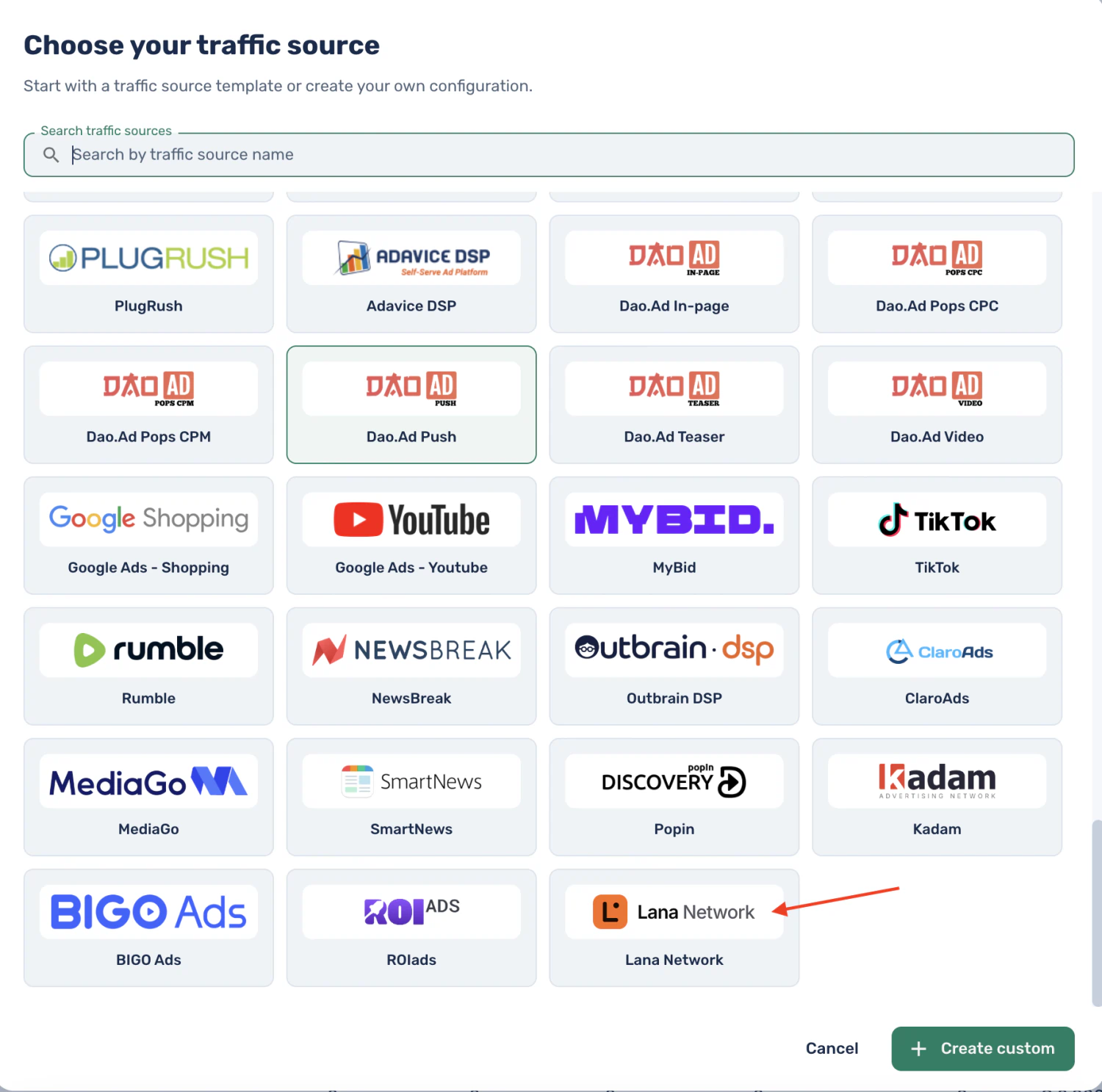
- Search for Lana Network and select its template.
- In Source details, choose your workspace and review the prefilled name.
Configure the conversion postback
In Conversion postbacks, confirm Enable postback is on. In the prefilled Traffic source postback URL, replace REPLACE_ADVERTISER_TOKEN with your private token from Lana Network. The template sends a purchase event with a payout value.
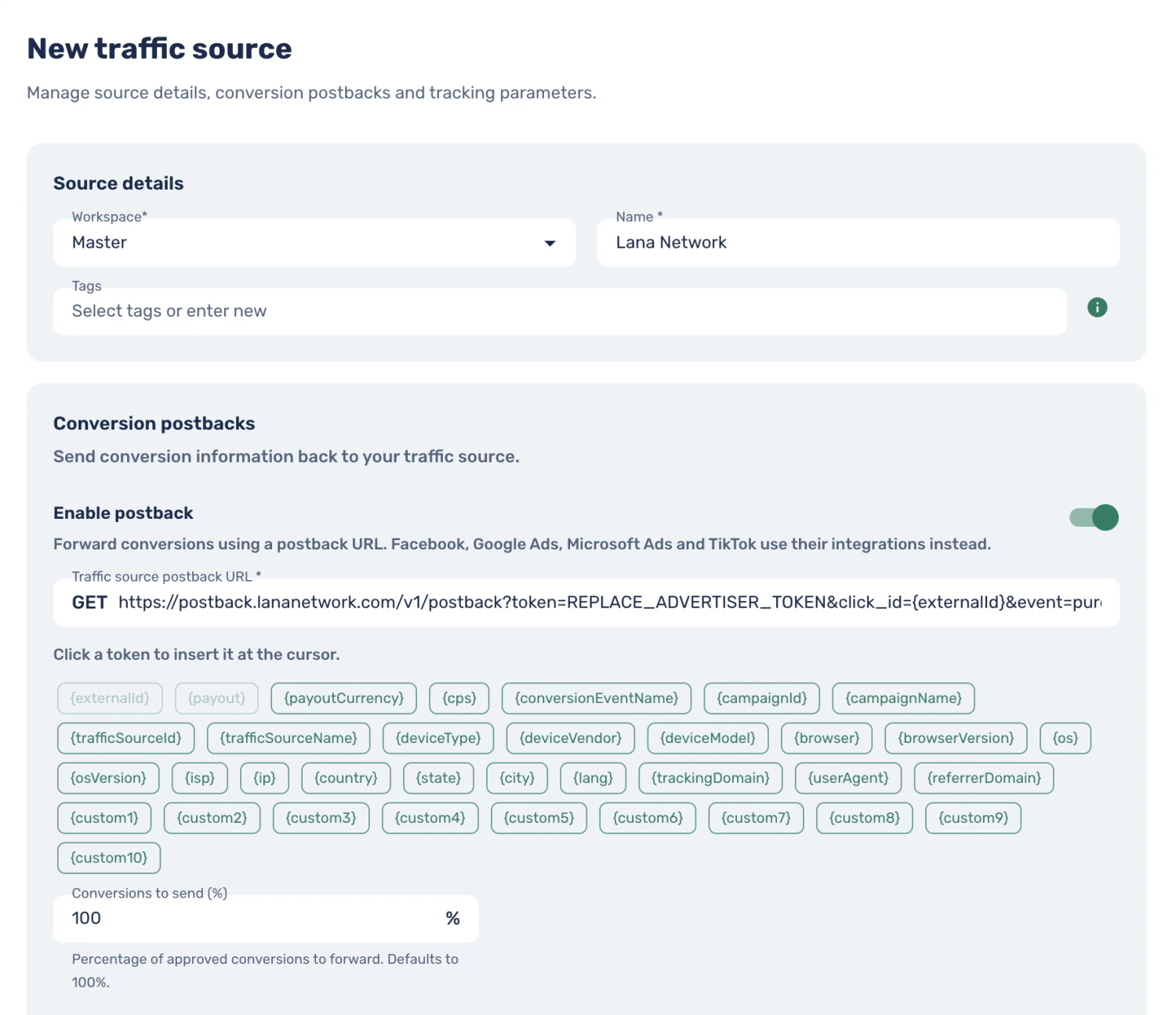
https://postback.lananetwork.com/v1/postback?token=REPLACE_ADVERTISER_TOKEN&click_id={externalId}&event=purchase&payout={payout}Leave {externalId} in the URL. Skro replaces it with the value saved from ocid before sending the postback. This example sends a purchase. If you are tracking leads instead, set event=lead and forward the lead event from your offer.
If your offer sends a Skro custom conversion, enable Send postback to Traffic Source on that event. In the traffic source, use Only allow selected custom conversions to limit which custom events use the URL. For example, select Purchase for the purchase URL so an add-to-cart event cannot be reported as a purchase.
Lana Network expects the payout amount in USD. If the amount Skro sends is in another currency, or you only want to report the event, remove &payout={payout}.
Review the tracking parameters and create the source
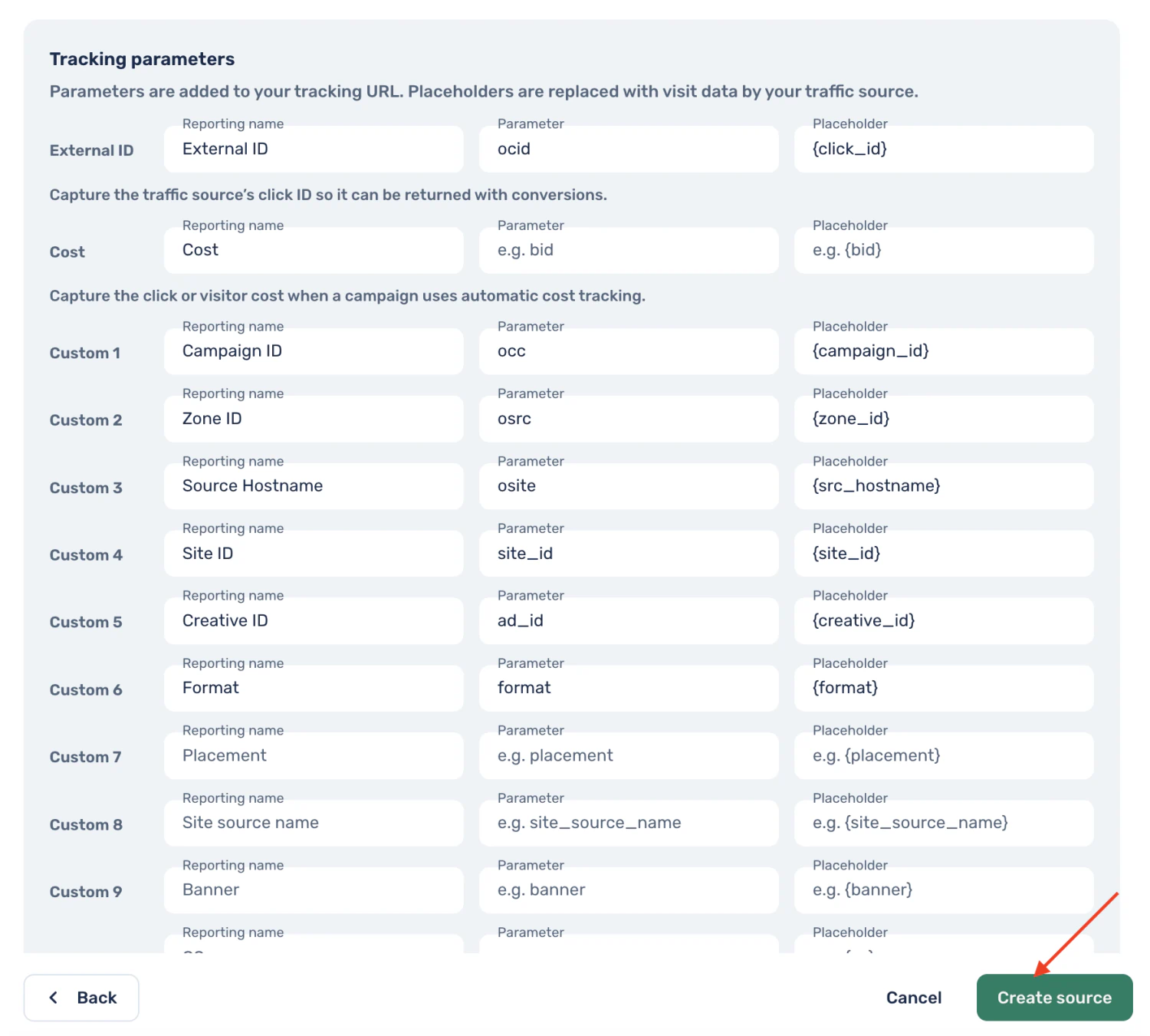
The template fills in these values under Tracking parameters. Leave the Cost parameter empty for this setup.
| Skro row | Reporting name | Parameter | Placeholder |
|---|---|---|---|
| External ID | External ID | ocid | {click_id} |
| Custom 1 | Campaign ID | occ | {campaign_id} |
| Custom 2 | Zone ID | osrc | {zone_id} |
| Custom 3 | Source Hostname | osite | {src_hostname} |
| Custom 4 | Site ID | site_id | {site_id} |
| Custom 5 | Creative ID | ad_id | {creative_id} |
| Custom 6 | Format | format | {format} |
The ocid value is Lana Network’s click ID. Skro saves it as the External ID for the outgoing postback. Your offer uses the separate Skro click ID when it reports the conversion to Skro.
Select Create source to save the configuration.
Connect the campaign in both platforms
-
In Skro Ads Manager, create a campaign with Lana Network as its traffic source. Select your tracking domain, offer, and landing page if you use one.
-
Select Do not track as the campaign cost model. To include spend in Skro reports, enter actual campaign spend using Update cost manually in Ads Manager for the matching reporting period.
-
Save the campaign and copy its HTTPS Campaign tracking URL from the campaign links. The template adds the tracking parameters to the URL. A redirect tracking URL will look like this, with your own domain and campaign path.
https://track.example.com/YOUR_CAMPAIGN_PATH?ocid={click_id}&occ={campaign_id}&osrc={zone_id}&osite={src_hostname}&site_id={site_id}&ad_id={creative_id}&format={format} -
Paste that URL into the Landing URL field of your Lana Network campaign. Keep the placeholders as generated. Lana Network fills them in when an ad click occurs. Follow the provider’s instructions to set the ad format, targeting, and CPM bid. Create a Lana Network campaign
Verify a visit and a conversion
Use a real click from the Lana Network campaign so its placeholders resolve. Find the visit in Skro’s click log and confirm External ID contains the Lana Network click ID. Check the campaign ID, zone ID, and publisher domain in the tracking data.
Complete a controlled conversion through your offer’s supported test flow. The offer’s callback to Skro uses the Skro click ID in its clickId field. Check that the event appears in Skro, then check the corresponding lead or purchase in Lana Network’s advertiser reports. Skro postback parameters
If Skro records the conversion but Lana Network does not, check the source’s Enable postback setting, the private token, the event selection, and the stored External ID. Lana Network can return an HTTP 200 response with an error message, so check the response text if it’s available. Lana Network’s postback reference
Need help with this guide? Contact Skro support.