

Snapchat Ads integration
Connect Snapchat Ads to Skro, track campaigns, configure Conversions API events, and manage campaign status, daily budgets, and eligible ad set bids.
Connect Snapchat Ads to compare delivery metrics with Skro visits, conversions, and revenue. Manage campaign, ad set, and ad status from Skro, update eligible daily budgets, and adjust manual ad set bids.
Before you begin
- Have access to the Snapchat ad account you want to connect and permission to authorize Skro.
- To send website conversions to Snapchat, have a Snap Pixel ID and Conversions API access token ready. Use the pixel associated with the website you measure. Snap Conversions API setup
- In Skro, use an owner or manager account and prepare your tracking domain, landing page, and offer.
Step 1. Connect your Snapchat account
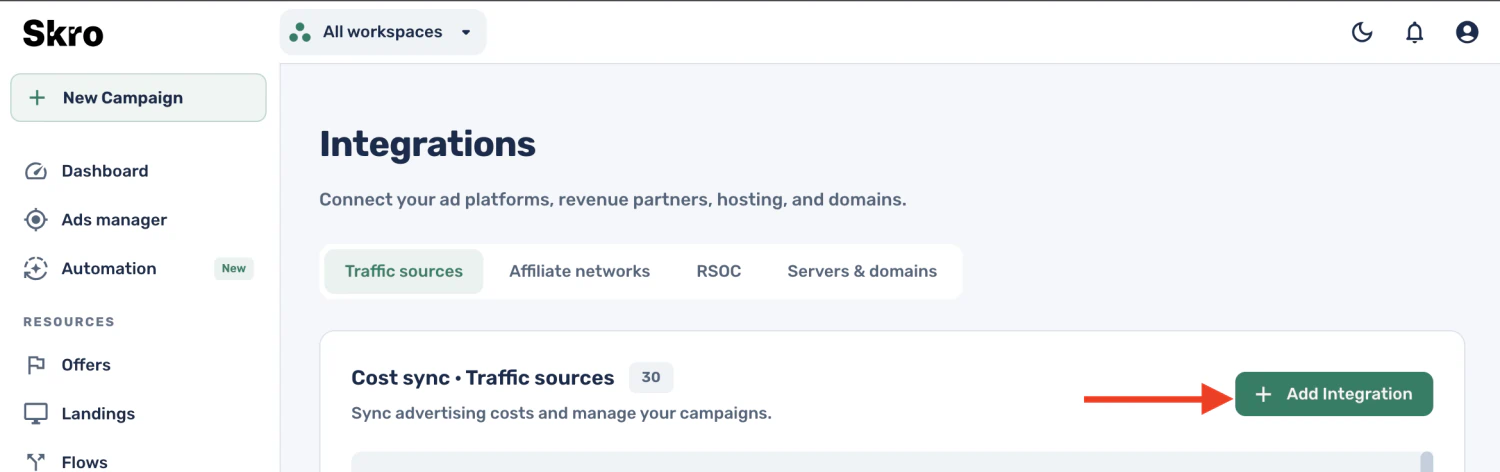
- Open Integrations → Traffic sources and select Add Integration.
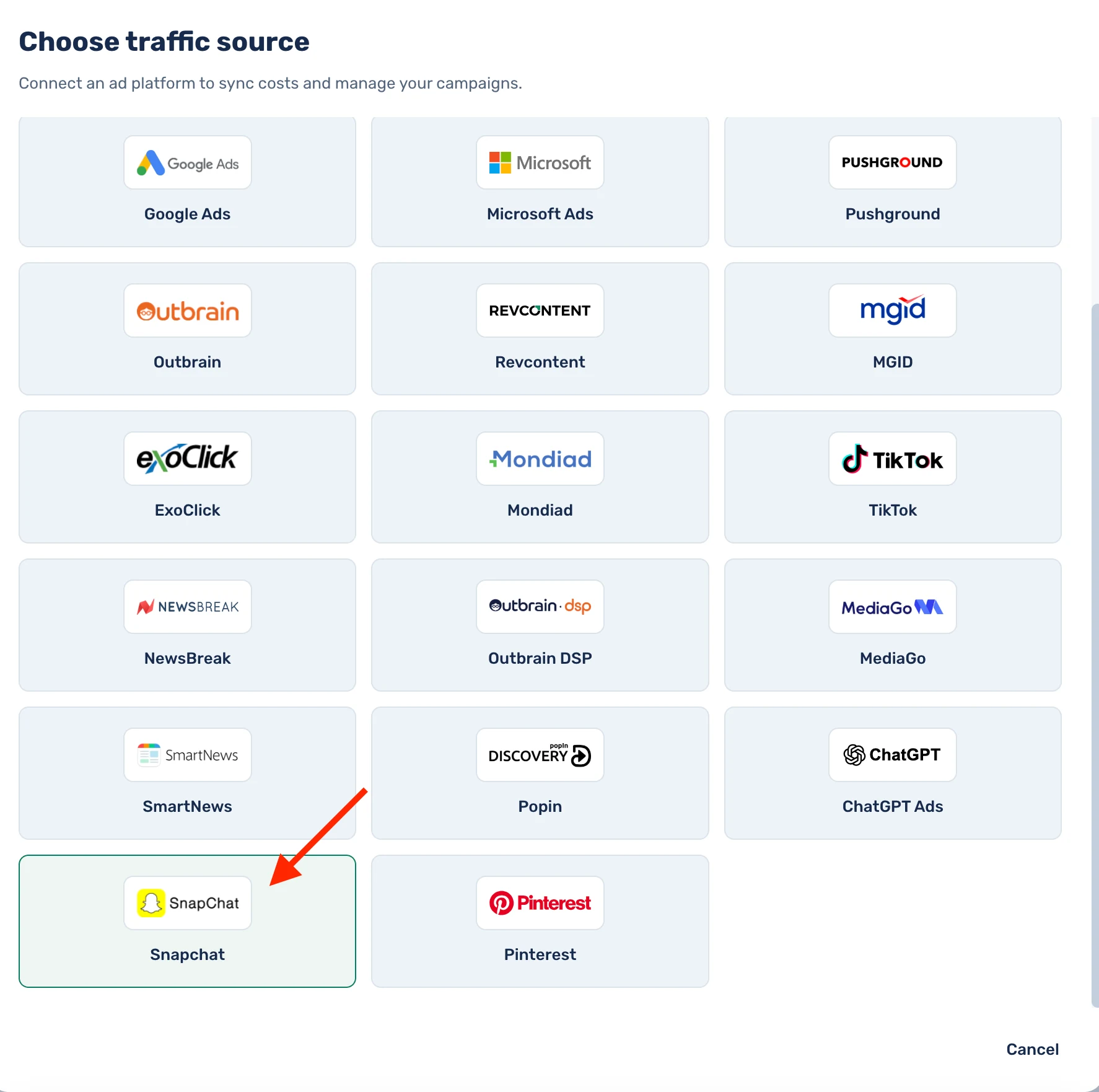
- Select Snapchat.
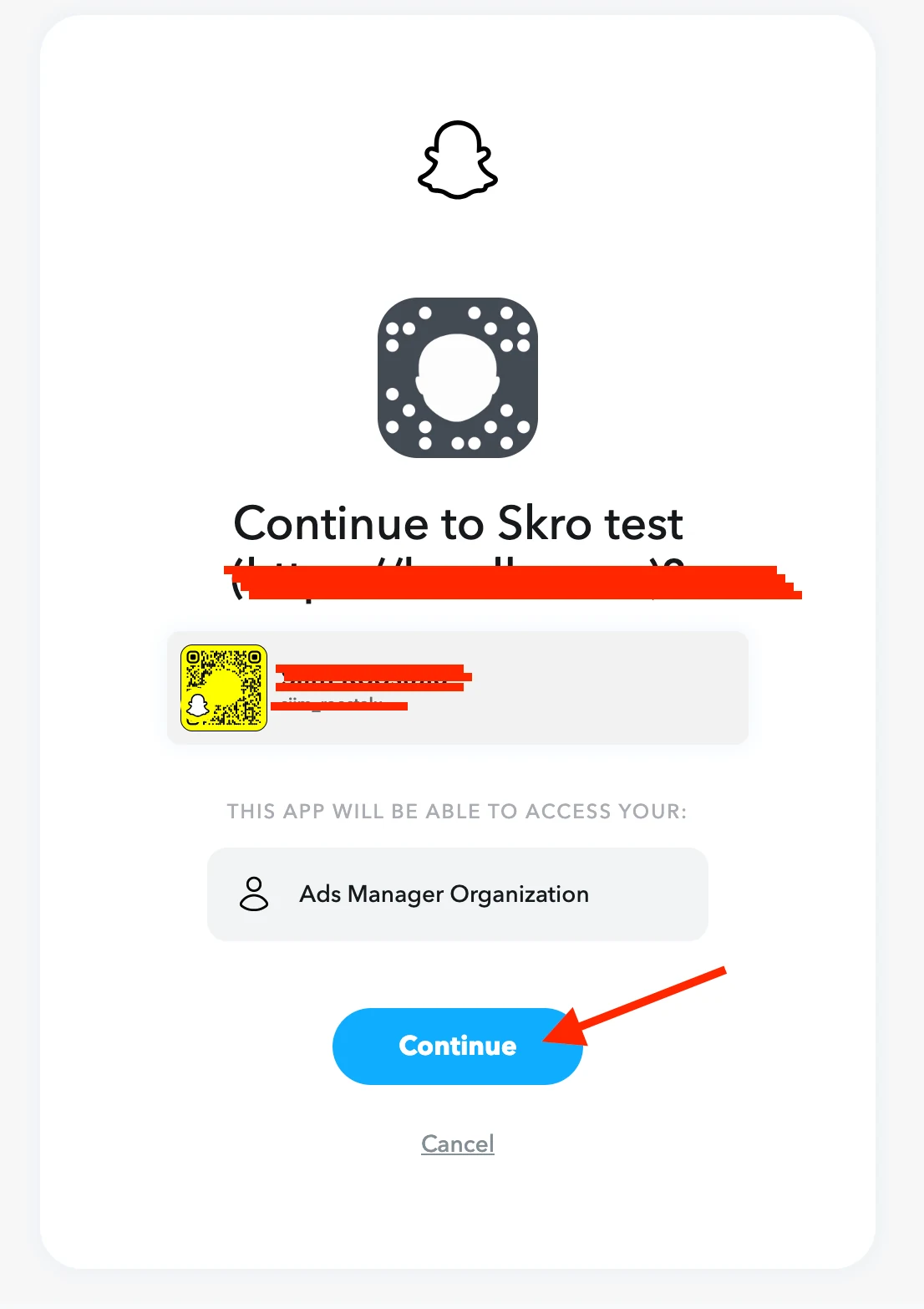
- Sign in to Snapchat and select Continue to authorize access to your Ads Manager organization, then return to Skro. The authorization screen may show your connected app's name.
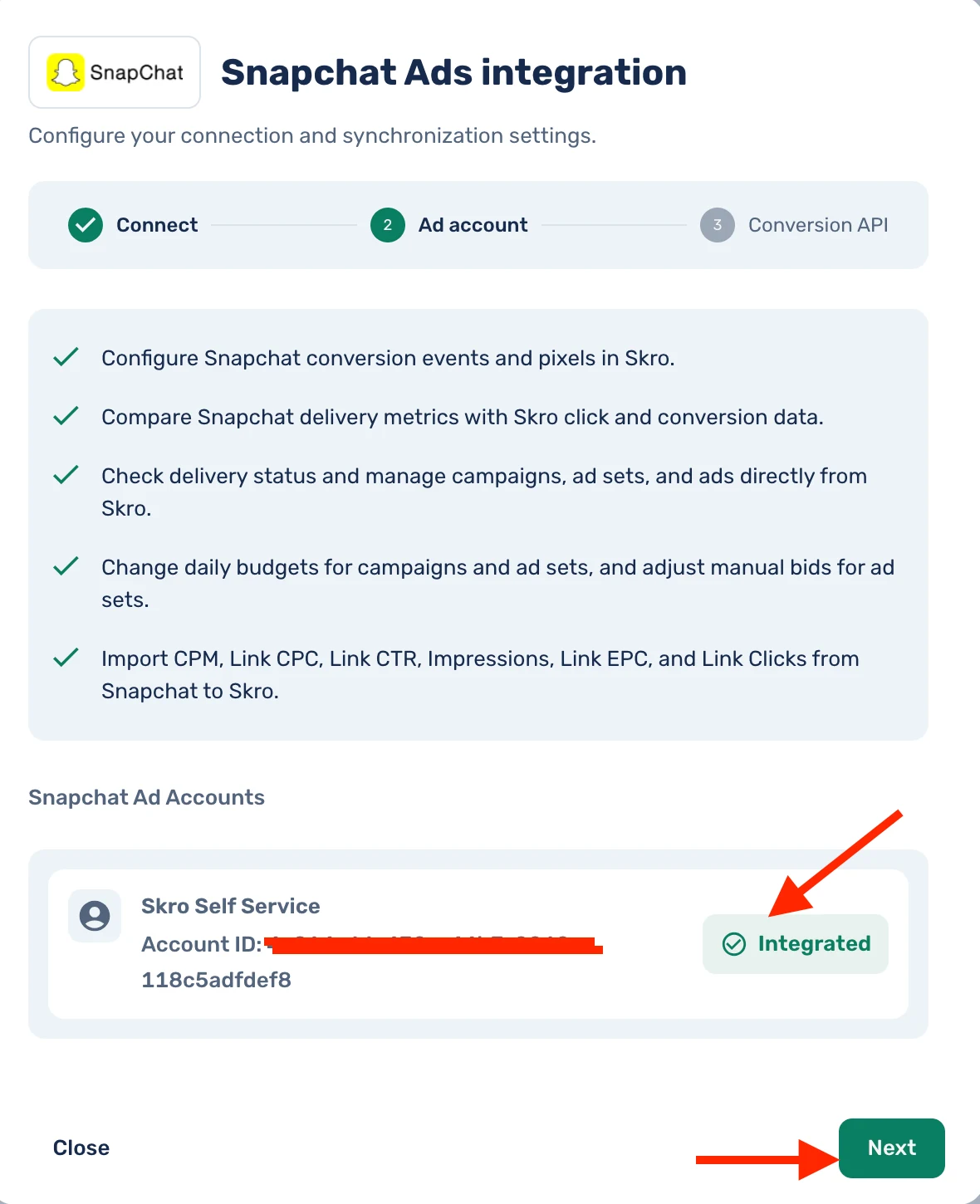
- In Snapchat Ad Accounts, select Integrate next to the account you want to use. Confirm that it shows Integrated, then select Next.
- To save the account connection for reporting and campaign controls, leave Enable Conversion API off and select Save & Close. You can edit the integration later to add conversion reporting.
Step 2. Configure the Conversions API
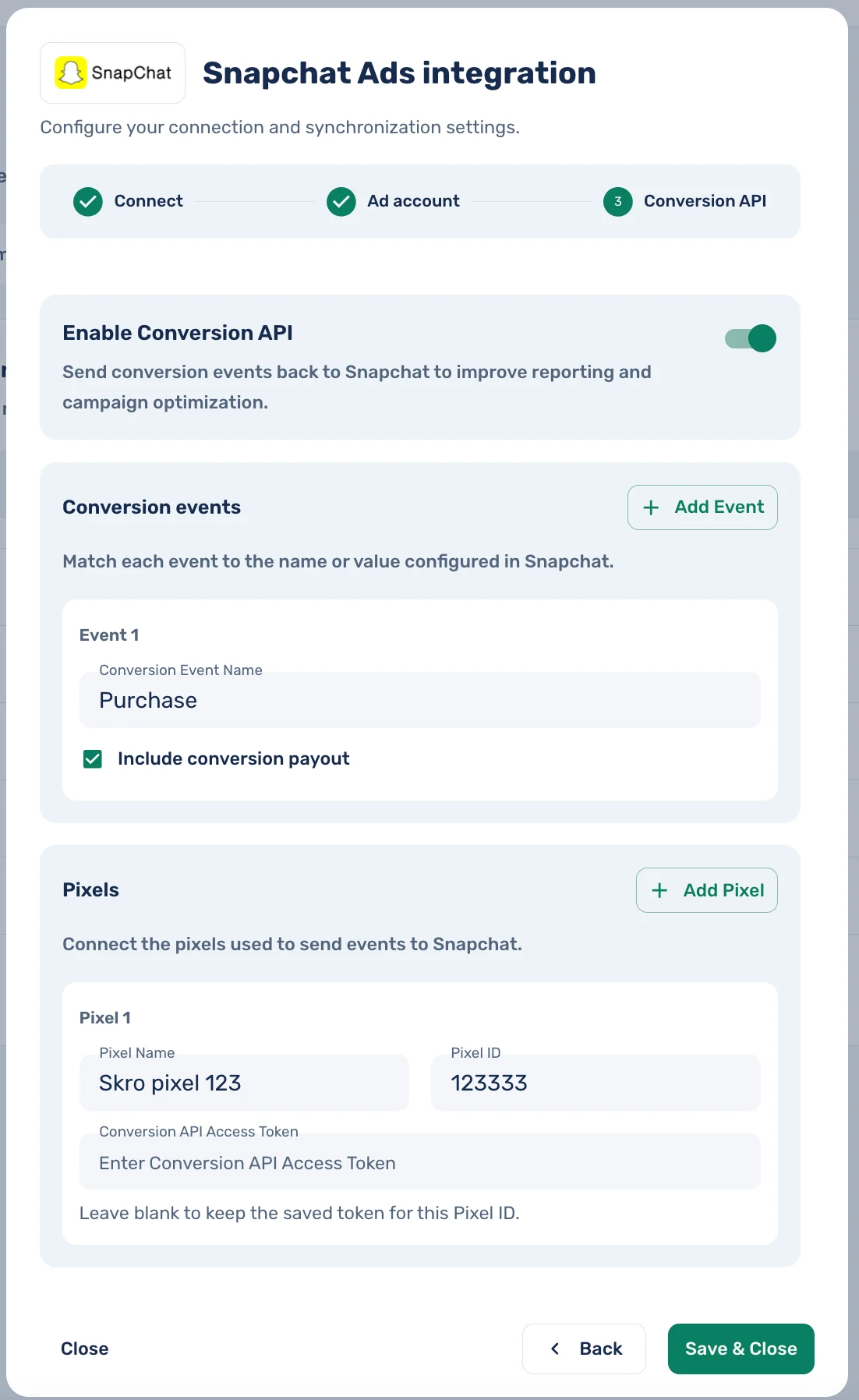
- Turn on Enable Conversion API.
- Under Conversion events, select Add Event. Enter a supported Snapchat event name such as
PURCHASE. Select Include conversion payout to send the recorded value and currency. - Under Pixels, enter a recognizable Pixel Name, your Pixel ID, and its Conversion API Access Token. Add more events or pixels if needed.
- Select Save & Close. When editing a saved pixel, you can leave its access token blank to keep the existing token for that Pixel ID.
For purchases, enable payout forwarding so Snapchat receives the purchase value. Choose the corresponding event and pixel on the Skro campaign in Step 5.
Step 3. Create and link the traffic source
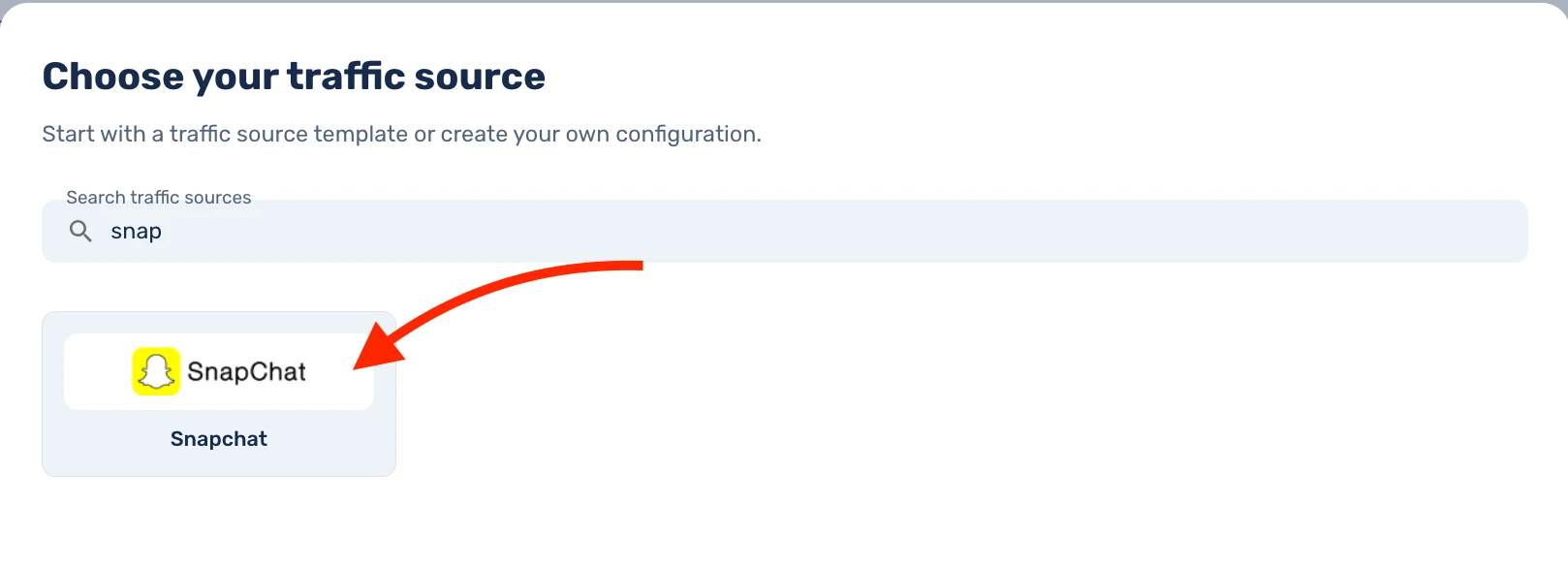
- Go to Traffic sources → Create and select the Snapchat template.
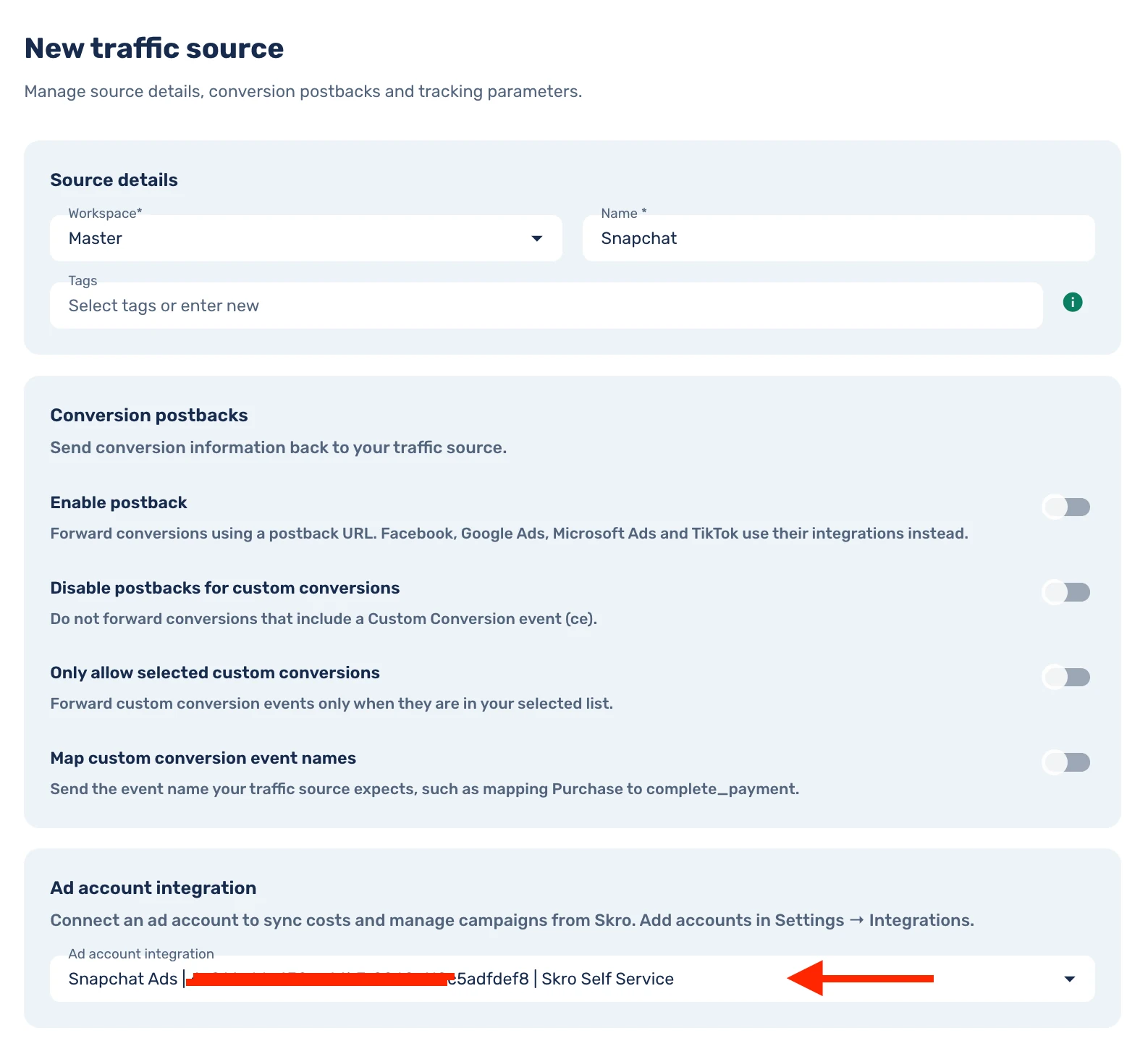
- Choose your workspace and enter a recognizable name.
- Under Ad account integration, choose the Snapchat account you connected. Leave the generic Enable postback switch off when using the Conversions API integration.
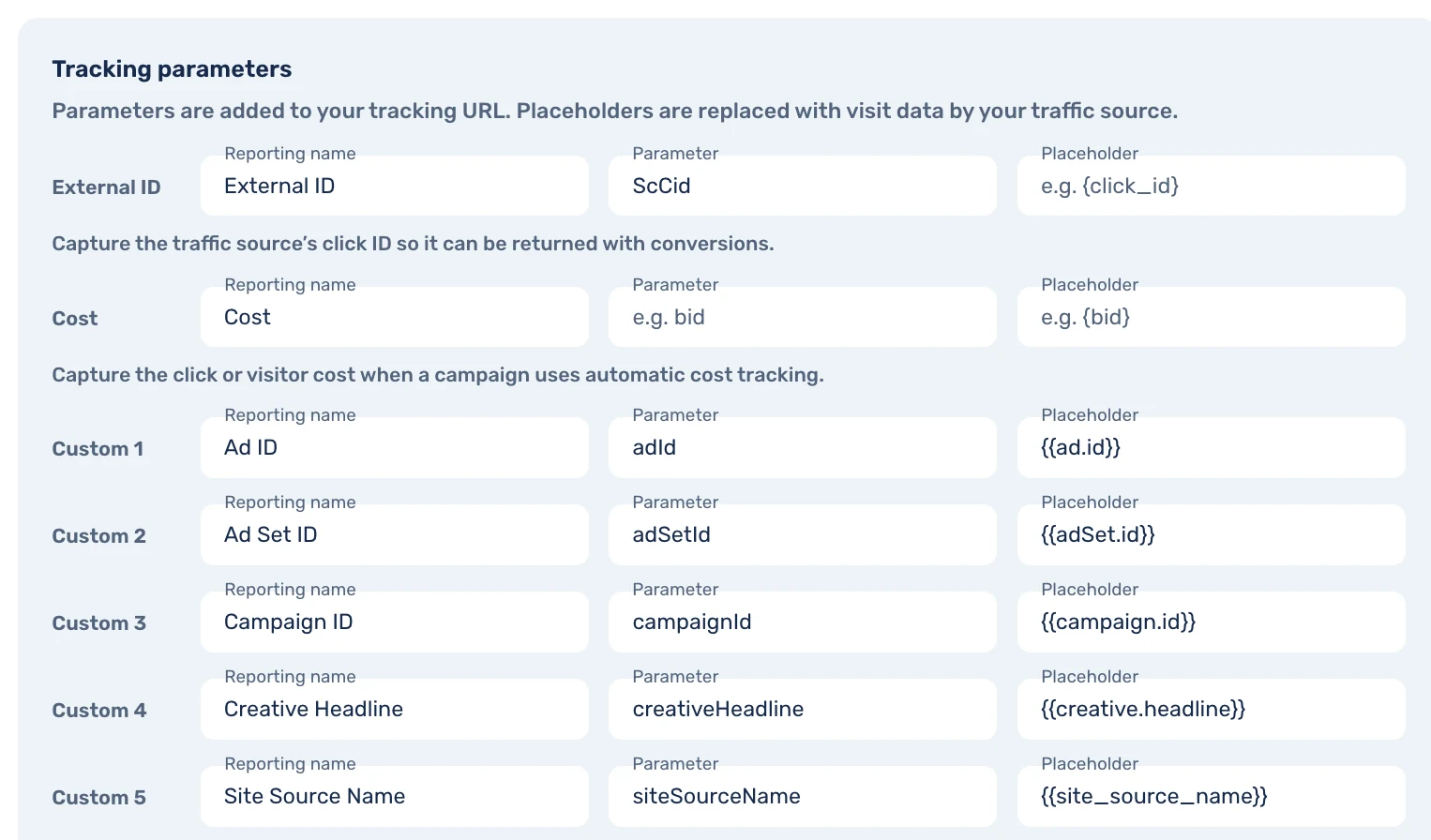
- Review the tracking parameters. Preserve the exact capitalization of
ScCidand the SnapchatadSetmacros. Select Create source.
Tracking parameter mapping
The prefilled Snapchat template uses the following mapping. Keep these URL parameter names and custom field positions so Skro can group your reports by campaign, ad set, and ad.
| Skro field | Reporting name | URL parameter | Snapchat value |
|---|---|---|---|
| External ID | External ID | ScCid | Snapchat appends the actual click ID on delivered ad clicks. Leave the placeholder blank. |
| Custom 1 | Ad ID | adId | {{ad.id}} |
| Custom 2 | Ad Set ID | adSetId | {{adSet.id}} |
| Custom 3 | Campaign ID | campaignId | {{campaign.id}} |
| Custom 4 | Creative Headline | creativeHeadline | {{creative.headline}} |
| Custom 5 | Site Source Name | siteSourceName | {{site_source_name}} |
The Cost parameter is blank in this template. Leave it blank unless you have a supported cost parameter to capture; select the appropriate cost model when creating your Skro campaign.
Configure the entity macros in Snapchat's URL parameter builder where available. Keep each parameter once in the final URL. Capture the actual ScCid value as the Skro External ID. Snap URL macros · Snap click ID reference
adId={{ad.id}}&adSetId={{adSet.id}}&campaignId={{campaign.id}}&creativeHeadline={{creative.headline}}&siteSourceName={{site_source_name}}Step 4. Add a landing page and offer
Add a landing page (optional)
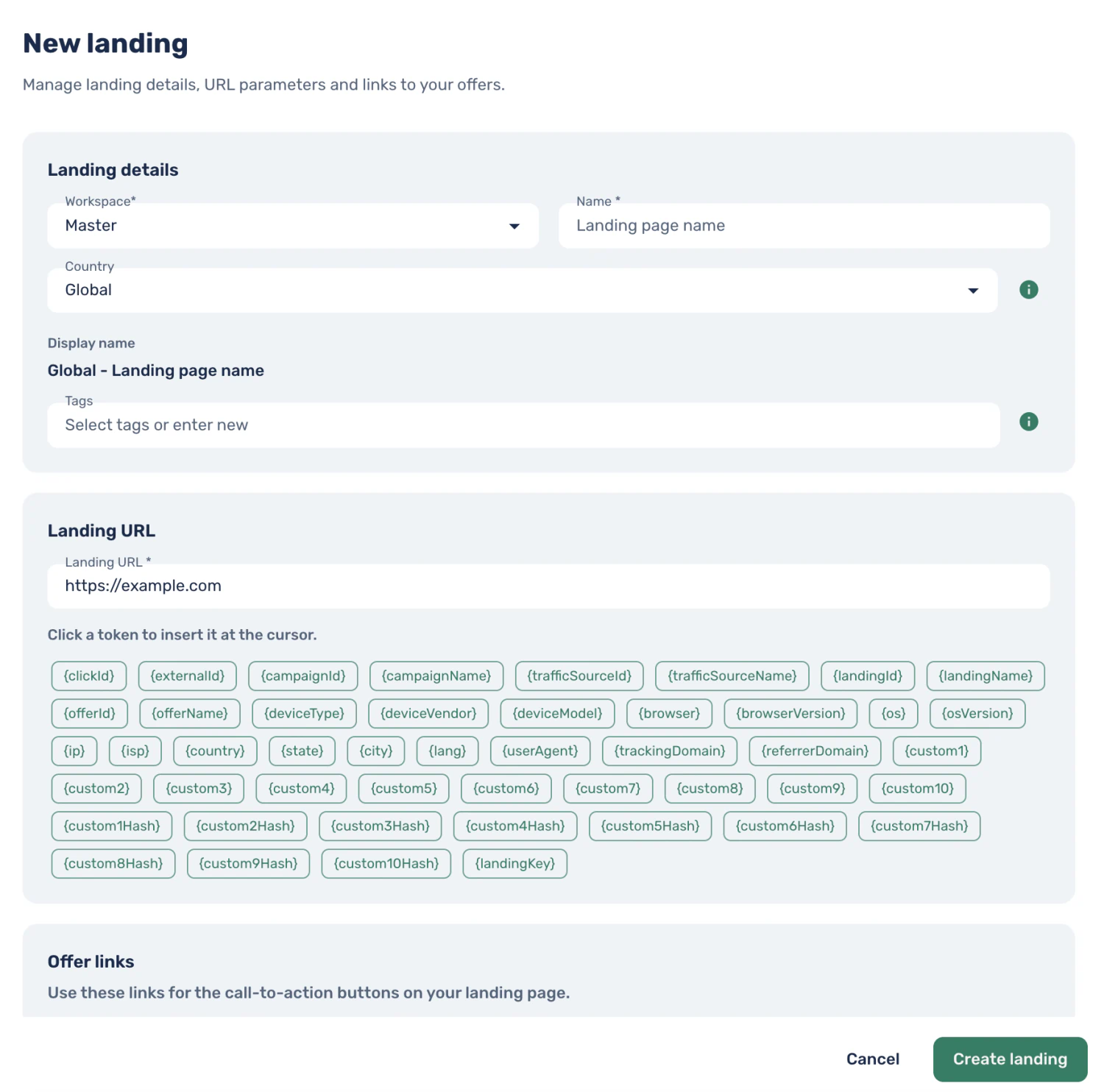
- Open Landings → Create. Choose your workspace, enter a name, and paste the address into Landing URL.
- In Offer links, copy the link for your tracking domain and use it on the landing page button that leads to your offer.
- Select Create landing. A campaign that sends visitors straight to an offer can use an offer-only path in Step 5.
Add the offer
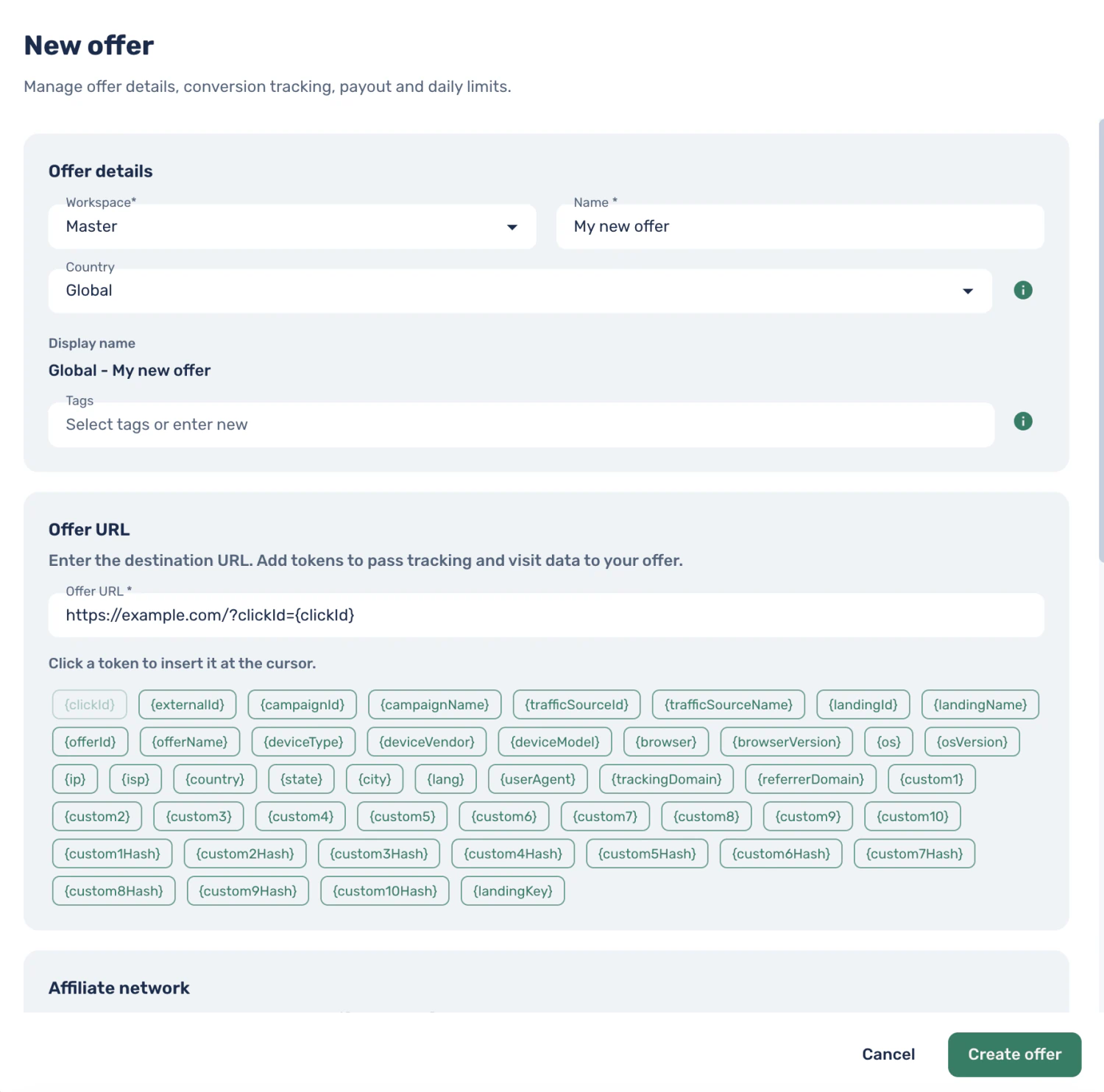
- Open Offers → Create. Choose your workspace, enter a name, and paste the destination into Offer URL.
- To receive conversions from a website or affiliate network, pass Skro's
{clickId}token in the parameter that system expects. For a system that readsclickId, an example ishttps://example.com/?clickId={clickId}. - Select the affiliate network when applicable, then select Create offer.
Step 5. Create the Skro campaign
- Select New Campaign or Create in Ads manager. Enter the campaign name and workspace, then select the linked Snapchat traffic source and your tracking domain.
- If you enabled Conversions API, select the Conversion Event Name and Conversion Pixel. For purchase reporting, select the
PURCHASEevent and the pixel configured in Step 2. - Choose the Cost model that matches how you record campaign spend. Use Automatic when importing costs through an enabled cost integration or supported URL parameters. Select Continue.
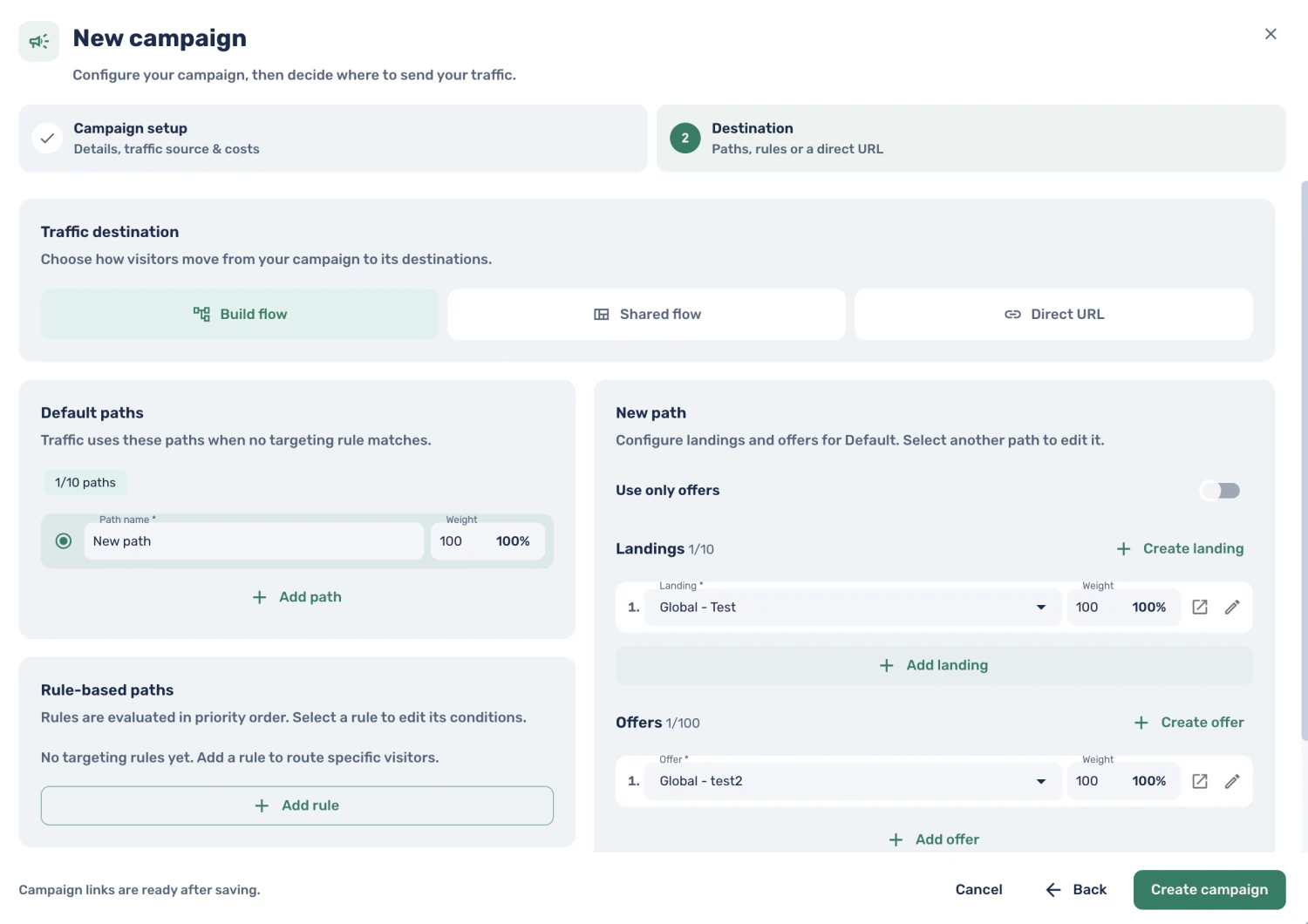
- Under Destination, select Build flow and choose your landing and offer. For a store or offer-only route, turn on Use only offers. Select Create campaign.
The shared destination example below shows the same landing and offer selection used for a Snapchat campaign.
- Open Campaign links. Choose Redirect to track through the Skro campaign link, or Direct to use your website URL with the Skro tracking script installed on that page.
- Copy the generated URL for your chosen method. For direct tracking, copy and install the generated landing or offer pixel in that page's
<head>section. - Open Conversion tracking and configure your website or affiliate network to report conversions to Skro using the saved Skro click ID.
Keep the complete generated campaign path and parameters, including trck for direct tracking. The Skro click ID identifies the visit in your postback. Snapchat's ScCid is captured separately as the traffic source's External ID.
Step 6. Configure and test the Snapchat ad
- Set the ad destination using the URL generated in Campaign links. Choose the tracking method that fits your destination and Snapchat ad setup.
- Add the Snapchat entity macros from Step 3 using its URL parameter builder where available. Match the parameter names to your Skro traffic source.
- Use the Snap Pixel and conversion event associated with the campaign when setting up website conversion optimization in Snapchat Ads Manager.
- Check a delivered ad click in Skro. Confirm that
ScCidcontains the real Snapchat click ID and that the campaign, ad set, and ad IDs resolve to actual values.
Standard conversion events and Skro mappings
Enter the exact Snapchat event name in your integration. To report multiple actions from one campaign, create Skro custom conversions, enable Send postback to traffic source, and use Map custom conversion event names on the traffic source.
Skro ce example | Snapchat event | When to send it |
|---|---|---|
PageView | PAGE_VIEW | A visitor opens a page. |
ViewContent | VIEW_CONTENT | A visitor views a product or content. |
AddToCart | ADD_CART | A shopper adds an item to their cart. |
InitiateCheckout | START_CHECKOUT | A shopper begins checkout. |
AddPaymentInfo | ADD_BILLING | A shopper adds billing details. |
Purchase | PURCHASE | A customer completes a purchase. |
SignUp | SIGN_UP | A visitor registers. |
Subscribe | SUBSCRIBE | A customer subscribes. |
StartTrial | START_TRIAL | A user starts a trial. |
Search | SEARCH | A visitor searches your website. |
AddToWishlist | ADD_TO_WISHLIST | A visitor saves an item to a wishlist. |
The Skro ce values above are examples you configure. The Snapchat event names must match the supported values. Skro also forwards these web event names, including Snapchat's five custom event slots.
| Additional Snapchat events supported by Skro |
|---|
SAVE, AD_CLICK, AD_VIEW, COMPLETE_TUTORIAL, LEVEL_COMPLETE |
INVITE, LOGIN, SHARE, RESERVE, ACHIEVEMENT_UNLOCKED |
SPENT_CREDITS, RATE, LIST_VIEW |
CUSTOM_EVENT_1, CUSTOM_EVENT_2, CUSTOM_EVENT_3, CUSTOM_EVENT_4, CUSTOM_EVENT_5 |
These events use the web action source in Skro's Snapchat connector. Snap event reference
Postback URL parameters for Snapchat
Your website or affiliate network reports the conversion to Skro. Skro looks up the original visit and sends the event to Snapchat using the campaign's selected pixel.
https://skrotrack.com/postback?clickId=SKRO_CLICK_ID&payout=29.00&payoutCurrencyCode=USD&transactionId=ORDER_123&eventId=ORDER_123Replace the placeholders with your saved click ID and order identifier. Use your own tracking domain when applicable, and include the protection token if enabled for your affiliate network. With PURCHASE selected on the campaign and payout forwarding enabled, this example reports a purchase worth US$29 before Skro's reporting currency conversion.
| Postback parameter | How Skro uses it |
|---|---|
clickId | Required. Finds the original visit and its Snapchat External ID, IP address, and user agent. |
payout, payoutCurrencyCode | Supply the conversion value in normal currency units and its currency. Skro converts the payout into the account's base reporting currency when forwarding value. |
ce | A Skro custom conversion value. Map it to a Snapchat event using the traffic source settings. Omit it to use the event selected on the campaign. |
eventId | An identifier for this action. If also using Snap Pixel, use the same value as that event's client_dedup_id. |
transactionId | Your order or transaction identifier. For PURCHASE, Skro forwards it as the order ID. It also supplies the event ID when eventId is omitted, with a generated ID as the final fallback. |
createdAtUTC | The original conversion time in UTC for delayed events. For example, 2026-11-26%2010%3A30%3A00. |
sourceDomain | The source URL or hostname for the web conversion. Skro removes its query string and fragment before sending it. |
email, phone, firstName, lastName, zip | Optional matching details. Skro normalizes and hashes these before forwarding them. Include a phone's country code and URL-encode values, including + as %2B. |
status, protectionToken, p1–p5 | Skro conversion status, postback protection, and extra reporting values. Standard conversions must be approved to be forwarded. |
What Skro sends automatically
| Snapchat data | Source |
|---|---|
Event name and WEB action source | The campaign's selected event or mapped Skro custom conversion. |
| Event ID and timestamp | The supplied event or transaction ID, with a generated fallback, and Skro's conversion time or createdAtUTC. |
sc_click_id | The original visit's External ID, captured from Snapchat's ScCid parameter. |
| Source URL | Your supplied sourceDomain, or the campaign's landing, offer, or direct destination. |
| Matching data | The visit's IP address and browser user agent, plus hashed location fields when available. |
| Value and currency | The converted payout when the selected event or custom conversion enables payout forwarding. |
The request needs a valid source URL and matching data. Skro requires email, phone, or both the original visit's IP address and user agent. For purchase reporting, enable payout forwarding to send your recorded revenue. If it is disabled, Skro supplies a zero value with USD to satisfy Snapchat's required purchase fields.
If the same action is sent through Snap Pixel and Skro, use the same Pixel ID, event name, and deduplication ID in both channels. Snap deduplication guidance
Verify the setup
- Follow a delivered Snapchat ad and check the intended Skro campaign, actual
ScCid, and resolved entity IDs. - Complete one test conversion and confirm its event and revenue in Skro. Check Logs → Postbacks for the outgoing Snapchat request and response.
- Check the corresponding pixel's events in Snapchat Events Manager. If events arrive but attributed conversions are missing, review the selected pixel, event, attribution window, and reporting dates.
- If a custom event fails, check its
cespelling, Snapchat event mapping, and Send postback to traffic source setting. If authorization expires, reconnect the Snapchat integration from Integrations.
Optimize Snapchat campaigns, ad sets, and ads
In Ads manager, open your Snapchat campaign and group by the campaign, ad set, and ad ID fields configured on its traffic source. Skro recognizes the Snapchat macros {{campaign.id}}, {{adSet.id}}, and {{ad.id}} for the corresponding report controls.
| Level | Controls |
|---|---|
| Campaign | Pause or enable the campaign and edit an eligible daily budget. |
| Ad set | Pause or enable the ad set, edit an eligible daily budget, and adjust a manual bid when available. |
| Ad | Pause or enable the ad and check its delivery status. |
Use Off/On for status changes and the edit control beside Ext. Daily Budget or Ext. Bid for an available setting. Amounts use the ad account's currency. Manual bid editing applies to Snapchat ad sets using LOWEST_COST_WITH_MAX_BID with a positive bid. Review Ext. Delivery Status, CPM, link CPC, link CTR, impressions, and clicks alongside Skro conversion and revenue columns.
Campaigns
Open your Snapchat campaign in Ads manager and group by C3: Campaign ID, C2: Ad Set ID, and C1: Ad ID. Select C3: Campaign ID to compare campaigns. Use Off/On to pause or enable a campaign. Edit Ext. Daily Budget when that campaign has an editable daily budget; a blank value does not mean a zero budget.

Ad sets
Select C2: Ad Set ID to compare ad sets. Change status with Off/On, or use the pencil beside Ext. Daily Budget to update an available budget. Ext. Bid is editable only for eligible manual bidding settings; the dash in this example means there is no editable bid shown.

Ads
Select C1: Ad ID to compare individual ads. Check Ext. Delivery Status alongside Skro visits, conversions, revenue, and profit before deciding which ads to pause or keep running. Use Off/On to change an ad's status.

Related guides
Need help with this guide? Contact Skro support.
Pinterest Ads integration
Connect Pinterest Ads to Skro, track conversions with Conversions API, map events and URL parameters, and manage campaigns, ad groups, budgets, and bids.
Taboola integration
Set up Taboola tracking in Skro, configure traffic source parameters, and connect your advertising campaigns.