# Pushground integration
Source: https://skro.eu/docs/integrations/pushground-integration
Set up Pushground tracking in Skro, configure traffic source parameters, and connect your advertising campaigns.
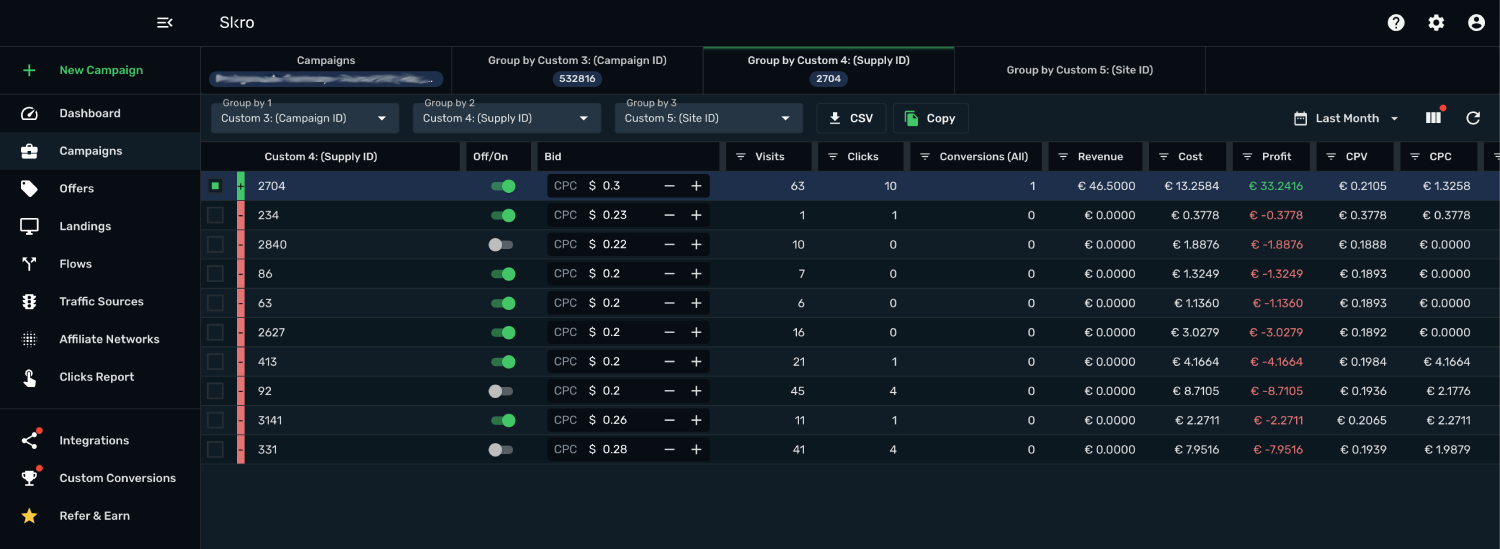
[Pushground](https://app.pushground.com/register?invitation=grE6FRebPnnluSmB5Ew17w%3D%3D) integration gives you the ability to manage and optimize all your Pushground ads through the Skro interface.
- Sync cost for campaigns, creatives, supplies and sites every 30 min.
- Check the status of your campaigns, creatives supplies and sites.
- Pause or resume campaigns, creatives, supplies and sites.
- Change the bid value for campaigns and supplies.
## How to generate Pushground API token? [#how-to-generate-pushground-api-token]
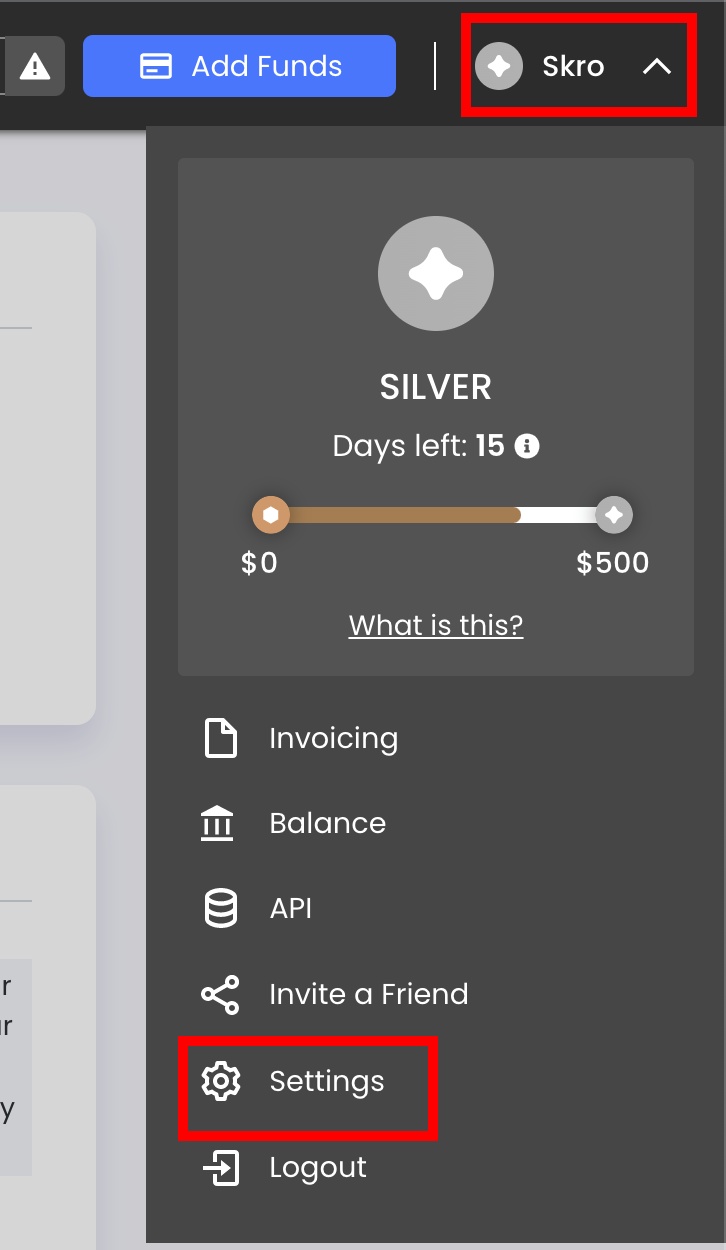
- Log in to your **Pushground** account.
- Navigate to **Settings**.
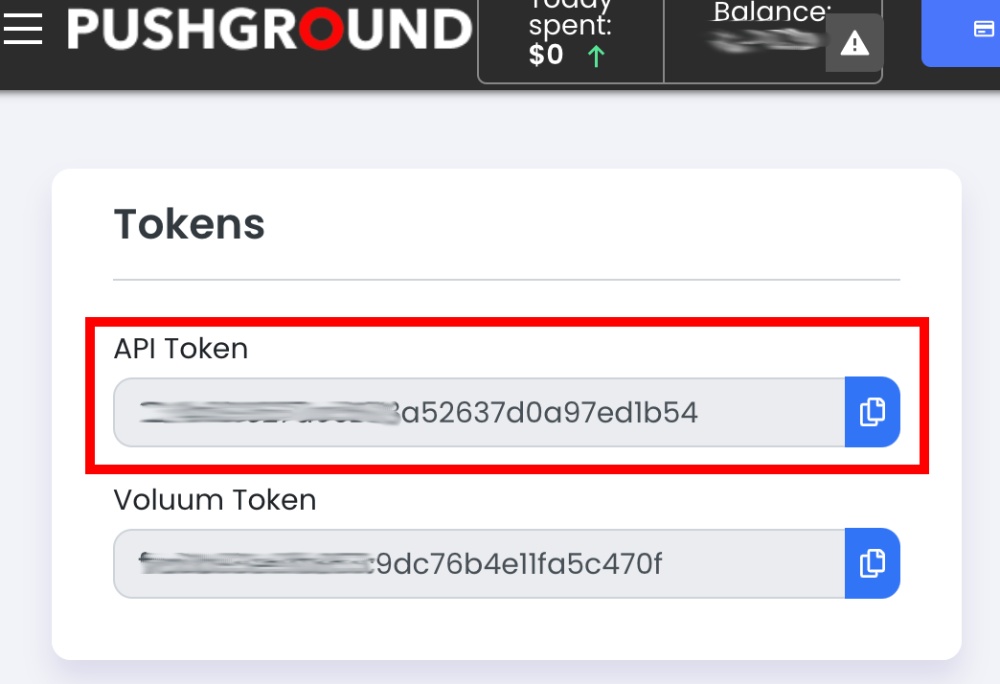
- Copy the **API Token** to clipboard.
## Add integration to Skro [#add-integration-to-skro]
- Log in to your **Skro** account.
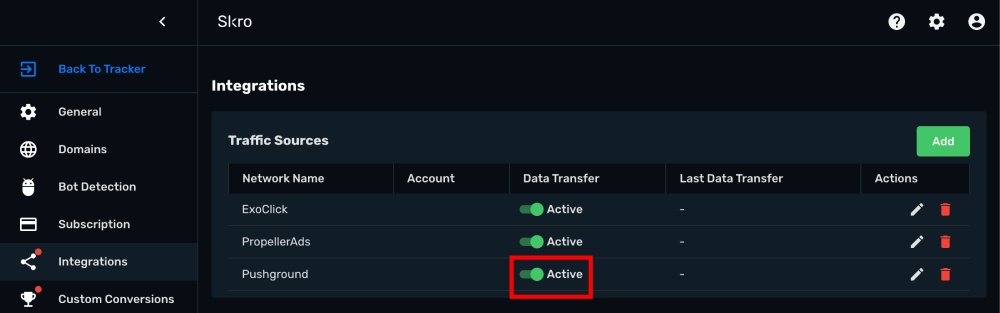
- Navigate to **Integrations**.
- In the **Traffic Sources** section click **Add**.

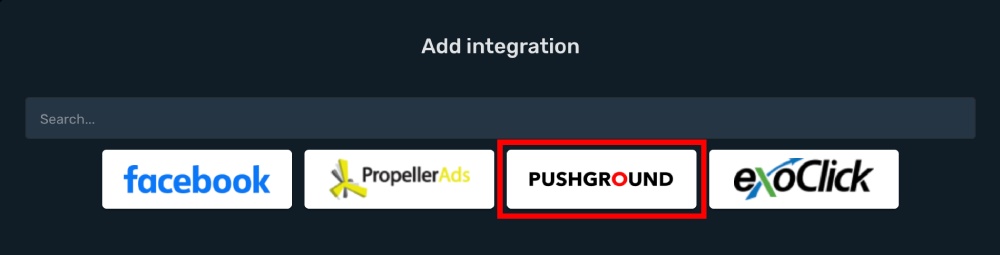
- Click **Pushground** logo.
- Paste the **Pushground API Token** to **API Token** field and click **Create Integration**.
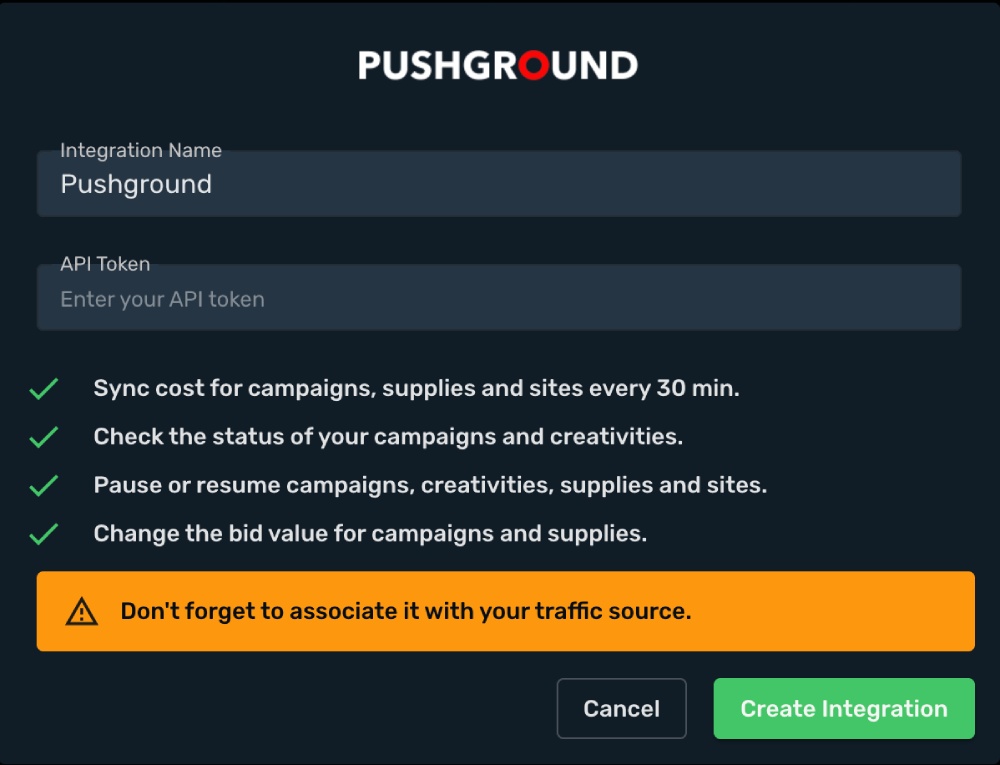
- You can turn on/off auto-cost update through **Data transfer** switch.
## Setup **Postback URL** and associate the integration with Pushground traffic source. [#setup-postback-url-and-associate-the-integration-with-pushground-traffic-source]
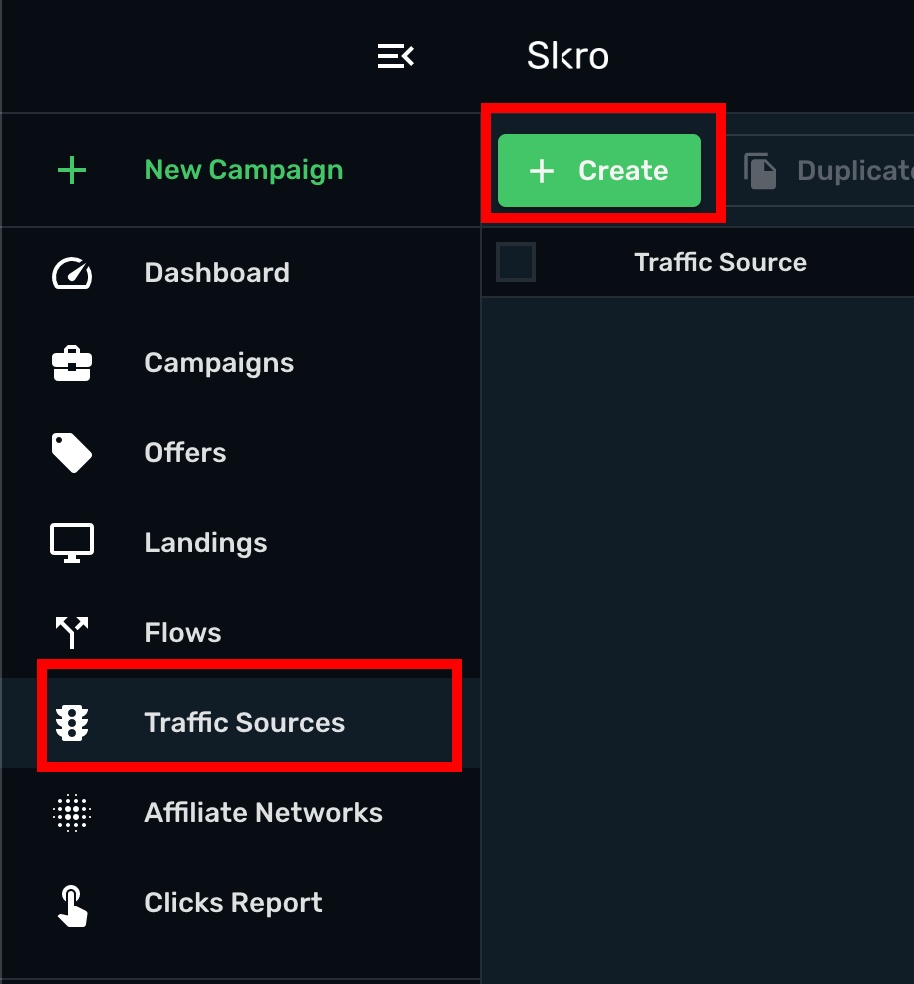
- Navigate to **Traffic Sources**.
- Click **Create**.
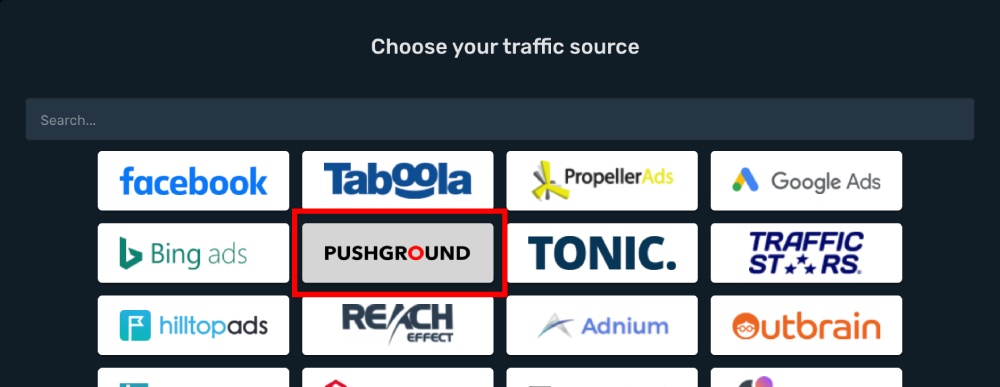
- Click **Pushground** logo.
- Traffic Source Postback URL is already prefilled.
- Add integration association.
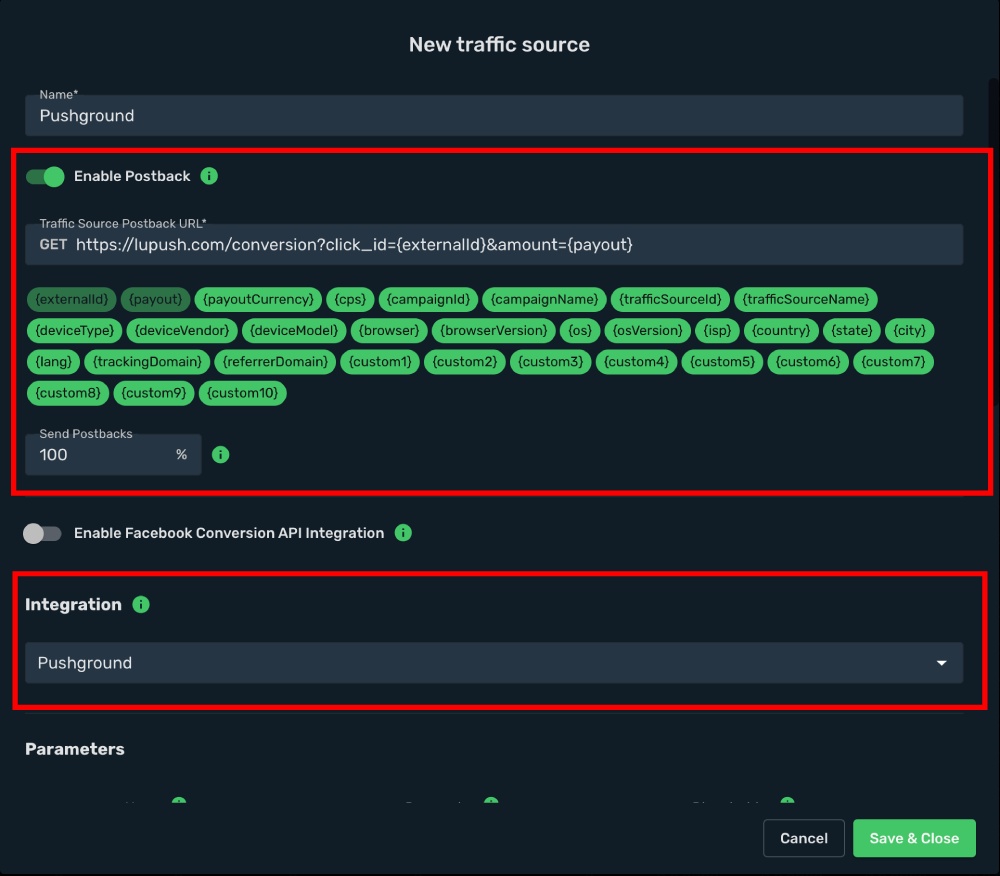
- All parameters are prefilled.
- Click **Save & Close**.
The integration is ready. Continue by creating a campaign.
## Verify the setup [#verify-the-setup]
Open the generated campaign URL and check that the visit appears in Skro. Confirm that traffic source macros resolve to actual values. If you send conversions back to the source, verify a test conversion in both systems.
If data is missing, check the selected workspace, integration, campaign, and reporting date range. Compare parameter names and macro values with the examples in this guide before repeating the test.
## Related guides [#related-guides]