# Inuvo Prism RSOC integration
Source: https://skro.eu/docs/integrations/rsoc-inuvo-prism-and-skro
Set up Inuvo Prism RSOC in Skro and map offer identifiers for Related Search on Content revenue reporting.
## Integration benefits [#integration-benefits]
Integration enables seamless revenue data synchronization across channels, ensuring accurate tracking even after adjustments from various traffic sources. It also consolidates your ads, conversions, and revenue, giving you a clear and comprehensive view of your ad performance.
- Revenue updates every hour.
- Revenue updates for the last 3 days.
## Step 1. Add integration [#step-1-add-integration]
1. Log in to your **Skro** account.
2. Navigate to **Settings** → **Integrations**.
3. Scroll down and click **Add** in **Revenue Sync - RSOC** section.

4. Click **Inuvo Prism API** logo.

- **Integration Name** name of your integration.
- **Access Token** is your Inuvo Prism API key.
- **Account Currency** is the currency of the earnings.
- **Net Revenue %** It's a net revenue percentage. Example value: **90**
- **Custom Conversion Event** is optional. If you are using Custom Conversion on your postback URL, then you will need to select your event here, otherwise your revenue isn't synced correctly.

5. Complete the form and click **Save & Close**
## Step 2. Add Inuvo offer in Skro [#step-2-add-inuvo-offer-in-skro]
1. Go to **Offers**.
2. Click **Create** and complete the required fields.
3. Map your **TKID** on special field to track revenue correctly. You should map **ONLY TKID** parameter value on this **RSoC Channel/Campaign/Brand ID** field. In this example it is **online_12345**

This is an example offer URL which goes to Skro:
`https://example.com/article/article_topic?tkid=online_23456778&agid=12345&clickId={clickId}`
Offer URL has 3 important parameters:
1. **&tkid=online_23456778** - You should pass your TKID in this parameter.
2. **&agid=12345** - You should pass your AGID in this parameter.
3. **`&clickId={clickId}`** - is a Skro Click ID to track conversions with postback URL.
`Note: If you are encoding Offer URL, do not encode Skro click ID macro {clickId}`
## Step 3. Standard Postback URL for conversions [#step-3-standard-postback-url-for-conversions]
1. Go to **Affiliate Networks** and click **Create**.
2. Search **Inuvo Prism** and click **Inuvo Prism API logo**.
3. Switch on **Allow double conversions**.
4. When finished, click **Save & Close**.

5. Copy that postback URL and give it to your account manager.
`Postback URL: https://skrotrack.com/postback?clickId={clickId}&p1={query}`
## Step 4. Use Custom Conversions (OPTIONAL) [#step-4-use-custom-conversions-optional]
With custom conversion events feature it is possible to track different events, revenue and clicks on a different columns. For Inuvo Prism we are going to create event **Purchase**.
1. Go back to Skro and navigate to the **Settings** → **Custom Conversions** and click **Create**.
2. Complete the required fields and click **Save & Close**.
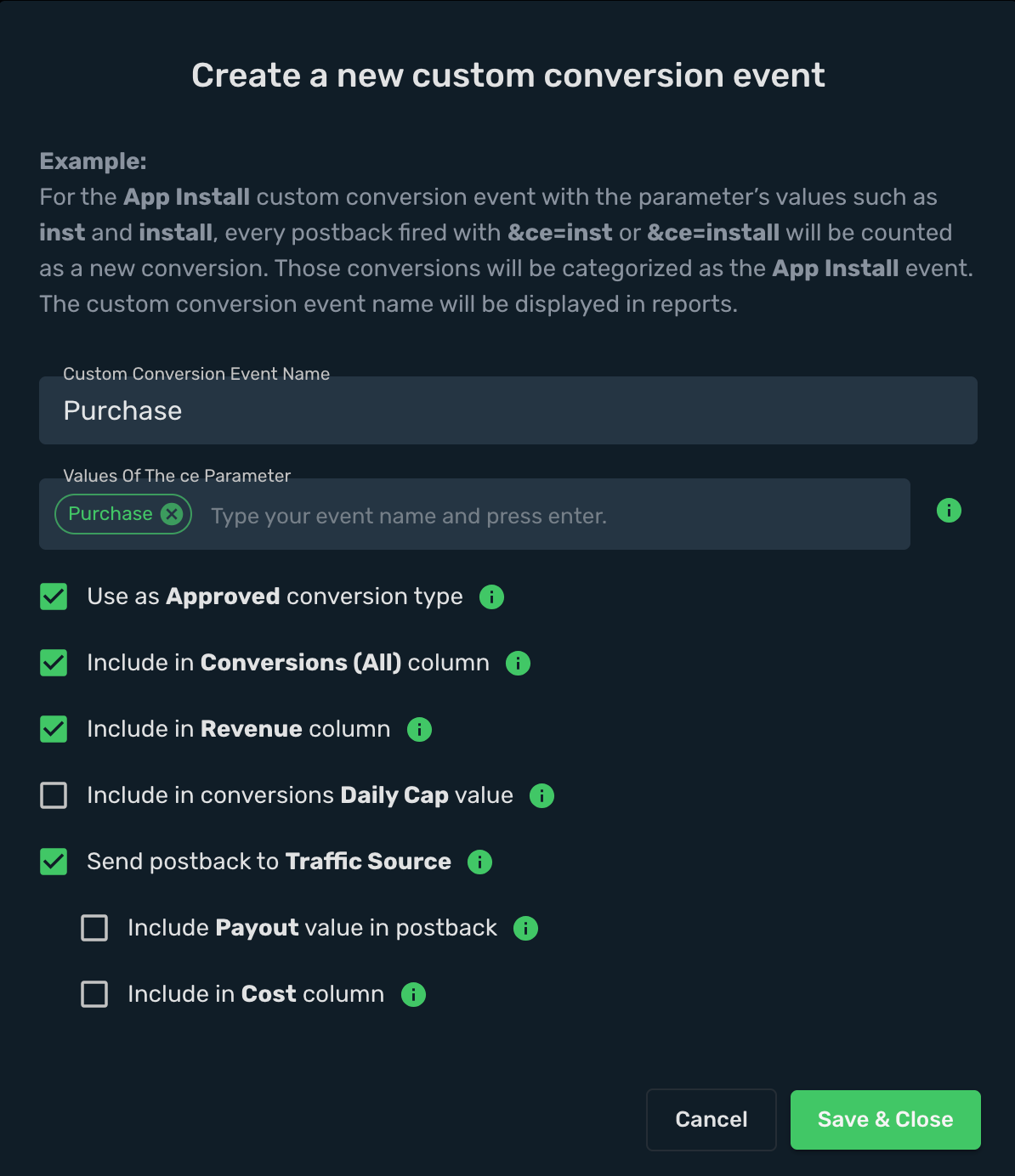
3. Copy that postback URL and give it to your account manager.
`Postback URL: https://skrotrack.com/postback?clickId={clickId}&p1={query}&ce=Purchase`
The integration is ready to synchronize earnings data.
## Verify the setup [#verify-the-setup]
Confirm that the offer identifiers match the values in your integration. After the next revenue synchronization, compare the same date range and currency in Skro and your provider account.
If data is missing, check the selected workspace, integration, campaign, and reporting date range. Compare parameter names and macro values with the examples in this guide before repeating the test.
## Related guides [#related-guides]