# Sedo direct tracking with Meta
Source: https://skro.eu/docs/integrations/sedo-facebook-direct-integration
Connect Sedo direct tracking with Meta with Skro and configure the identifiers used to synchronize search arbitrage revenue.
Sedo stands for "Search Engine for Domain Offers" and their online platform currently provides not only a convenient searchable domain marketplace, but also extensive services for domain buyers and sellers: from domain parking to value appraisals all the way up to the brokerage and marketing of domains by our professional brokerage team.
Our integration with Sedo gives you the ability to sync earnings data that has been adjusted after Sedo first postback.
- Update revenue of the previous 3 days once a day.
## Step 1. How to add Sedo integration? [#step-1-how-to-add-sedo-integration]
- Log in to your **Skro** account.
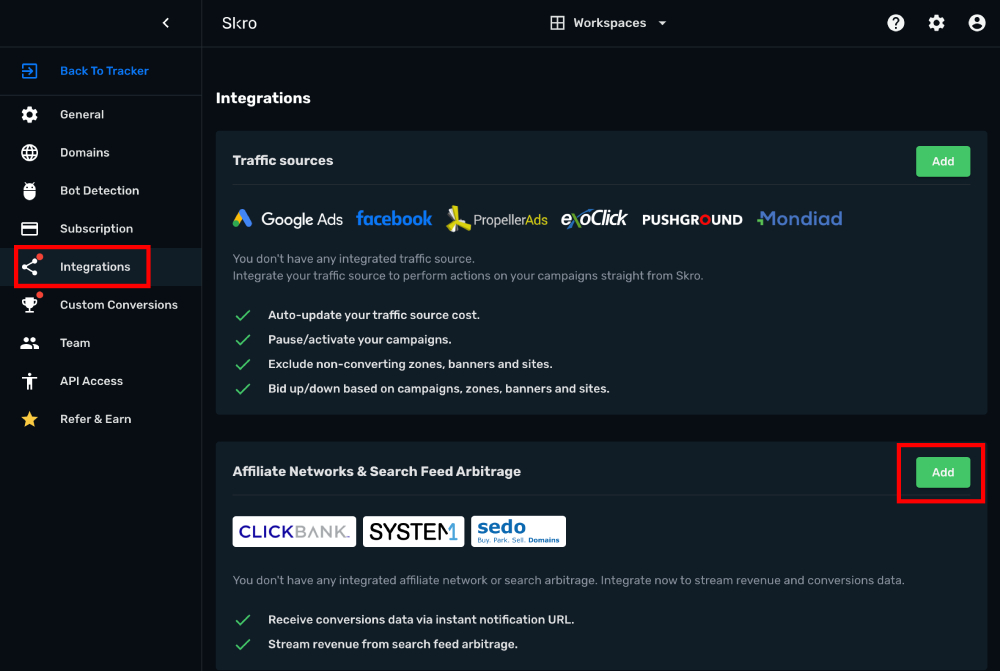
- Navigate to **Settings** → **Integrations**.
- Click **Add** in Affiliate Network & Arbitrages section.
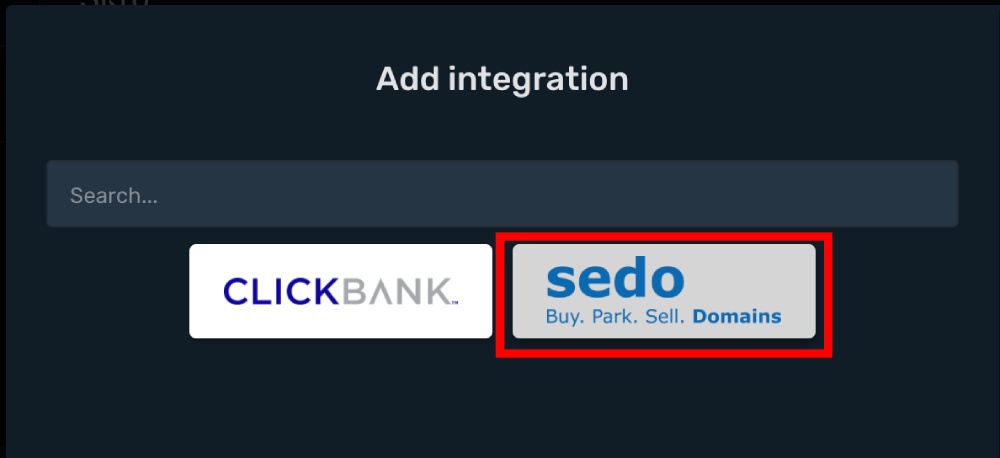
- Click **Sedo** logo.
- **PartnerID** and **SignKey** info you must ask from your Sedo account manager or write to Sedo support.
- **Username** and **Password** is your Sedo login credentials.
- **Sedo Account Currency** is the currency of the parking earnings.
- **Custom Conversion Event** is optional, but you can see a revenue and conversions info in a different columns in your Skro reports.
- **Click ID Param** is the parameter what you use in your offer URL to send Skro Click ID.
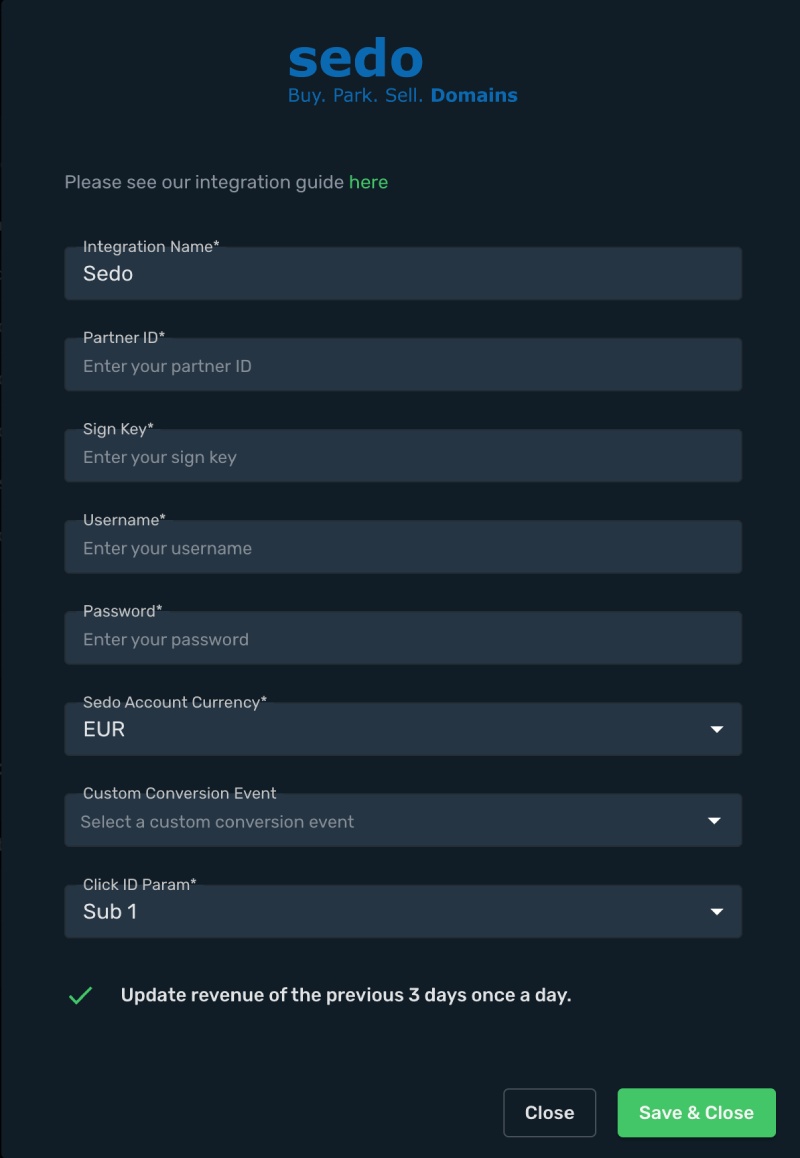
- Complete the form and click **Save & Close**
## Step 2. How to set up Sub ID values for Direct tracking? [#step-2-how-to-set-up-sub-id-values-for-direct-tracking]
First, you need to link the **Arbitrage Integration** with your Facebook traffic source for a proper **Direct** tracking.
- Go to **Traffic Sources**.
- Click **Create** and select **Facebook** template.
- Complete the required fields.
- Select your **Traffic Source Integration**.
- Select your **Arbitrage Integration.**

- Click **Save & Close**
To ensure accurate direct tracking with Facebook/Meta Ads, please add the "sub1" and "sub2" parameters to your offer URL.
- **`&sub1={campaignId}|{offerId}`**
- **`&sub2={custom5}|{custom3}|{custom1}`**
- Go to **Offers** and click **Create**

This is an example url:
```text
https://sedo-offer.com?sub1={campaignId}|{offerId}&sub2={custom5}|{custom3}|{custom1}&network=facebook&site=my-site&adtitle=my-ad-title
```
- Click **Save & Close**
The integration is ready to synchronize earnings data. with **Direct** tracking.
## Verify the setup [#verify-the-setup]
Confirm that the offer identifiers match the values in your integration. After the next revenue synchronization, compare the same date range and currency in Skro and your provider account.
If data is missing, check the selected workspace, integration, campaign, and reporting date range. Compare parameter names and macro values with the examples in this guide before repeating the test.
## Related guides [#related-guides]