# Taboola integration
Source: https://skro.eu/docs/integrations/taboola-integration
Set up Taboola tracking in Skro, configure traffic source parameters, and connect your advertising campaigns.
[Taboola](https://taboola.com) integration gives you the ability to manage and optimize all your Taboola ad campaigns through the Skro interface.
- Sync cost for campaigns, ads and sites every 30 min.
- Check the status of your campaigns, ads and sites.
- Pause or resume campaigns, ads and sites.
In this guide, you will learn how to set up your campaigns in Taboola and Skro so Taboola can pass information to Skro and back with a selected tracking method. This guide does not cover all aspects and options available when creating a campaign on these two platforms. Basic knowledge regarding setting up campaigns in Taboola and Skro is required.

## Step 1. Ask Taboola Credentials [#step-1-ask-taboola-credentials]
Contact your Account Manager or Taboola support, saying you want to integrate with their backstage API, ask them provide **Client ID** and **Client Secret** of your account. You will need it when setup Taboola integration in Skro.
## Step 2. Create a Conversion [#step-2-create-a-conversion]
A conversion event name is needed for Skro to send conversions to Taboola. We should get a conversion event name in this section.
- Sign in to your Taboola account.

- Navigate to the **Tracking**.

- Click **+ New Conversion**.

- Enter your conversion name.
- Set conversion type **Event**.
- Select your conversion category.
- Type your **Conversion Event Name**. (You will need that name when creating an integration in Skro.)
- Click **Create**.
## Step 3. Setup integration [#step-3-setup-integration]
- Log in to your **Skro** account.
- Navigate to **Settings → Integrations**.
- In the **Traffic Sources** section click **Add**.

- Click **Taboola** logo and integration form will pop up.

- Enter your **Integration Name**.
- Enter your Taboola **Client ID**. Get this value from your account manager or taboola support.
- Enter your Taboola **Client Secret**. Get this value from your account manager or taboola support.
- Click **Next**.

- If you want to send conversions info back to Taboola, then you will need to enable **Conversion API.**
- **Conversion Event Name** - must be the same as you typed in Taboola. When creating Skro campaign you will need to specify which conversion goal to send to.
- **Include Conversion Payout** - If checked, we will send conversion revenue and currency to Taboola.
- Click **Save & Close**.

- You Taboola account is successfully integrated.
- You can switch on/off cost sync with given switch.

## Step 4. Associate the integration with your traffic source [#step-4-associate-the-integration-with-your-traffic-source]
- Navigate to the **Traffic Sources** and click **Create**.
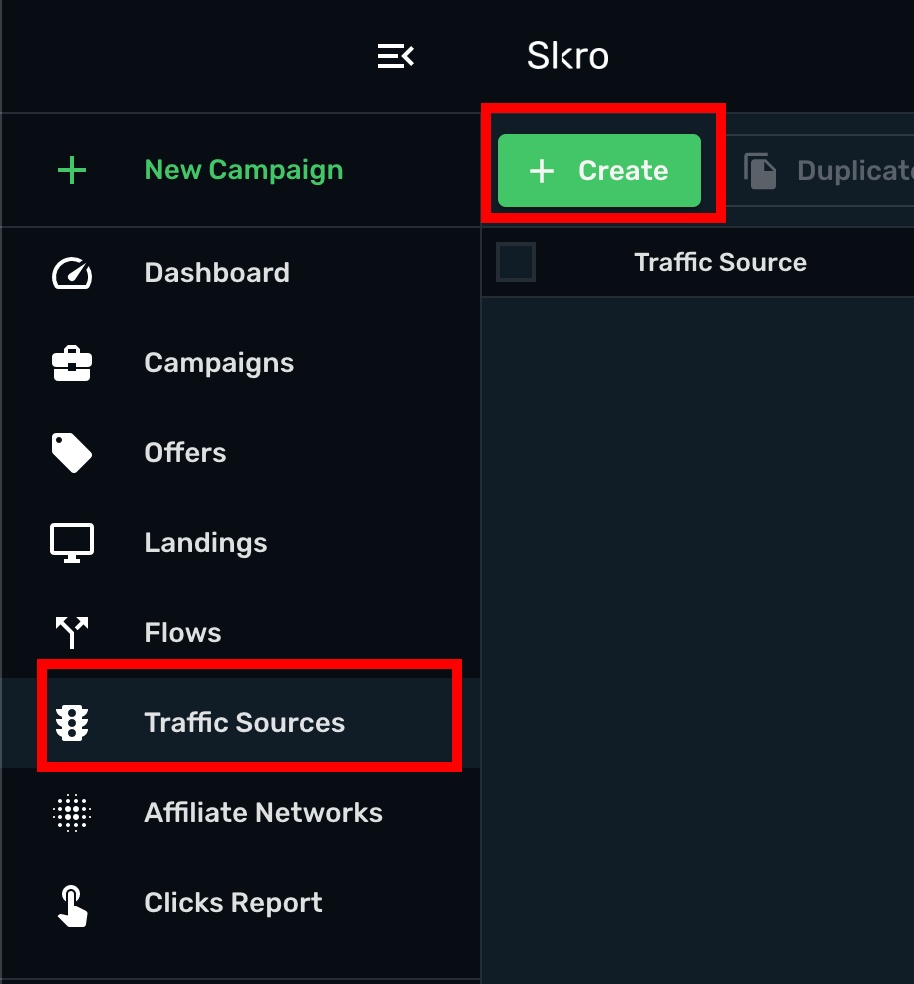
- Click **Taboola** logo.

- Postback URL is already set with correct macros.
- Select your Taboola integration from the dropdown menu.

- All parameters are already prefilled for you.
- Click **Save & Close**.
The integration is ready. Continue by creating a campaign for Taboola.
## Step 5. Create a Campaign in Skro [#step-5-create-a-campaign-in-skro]
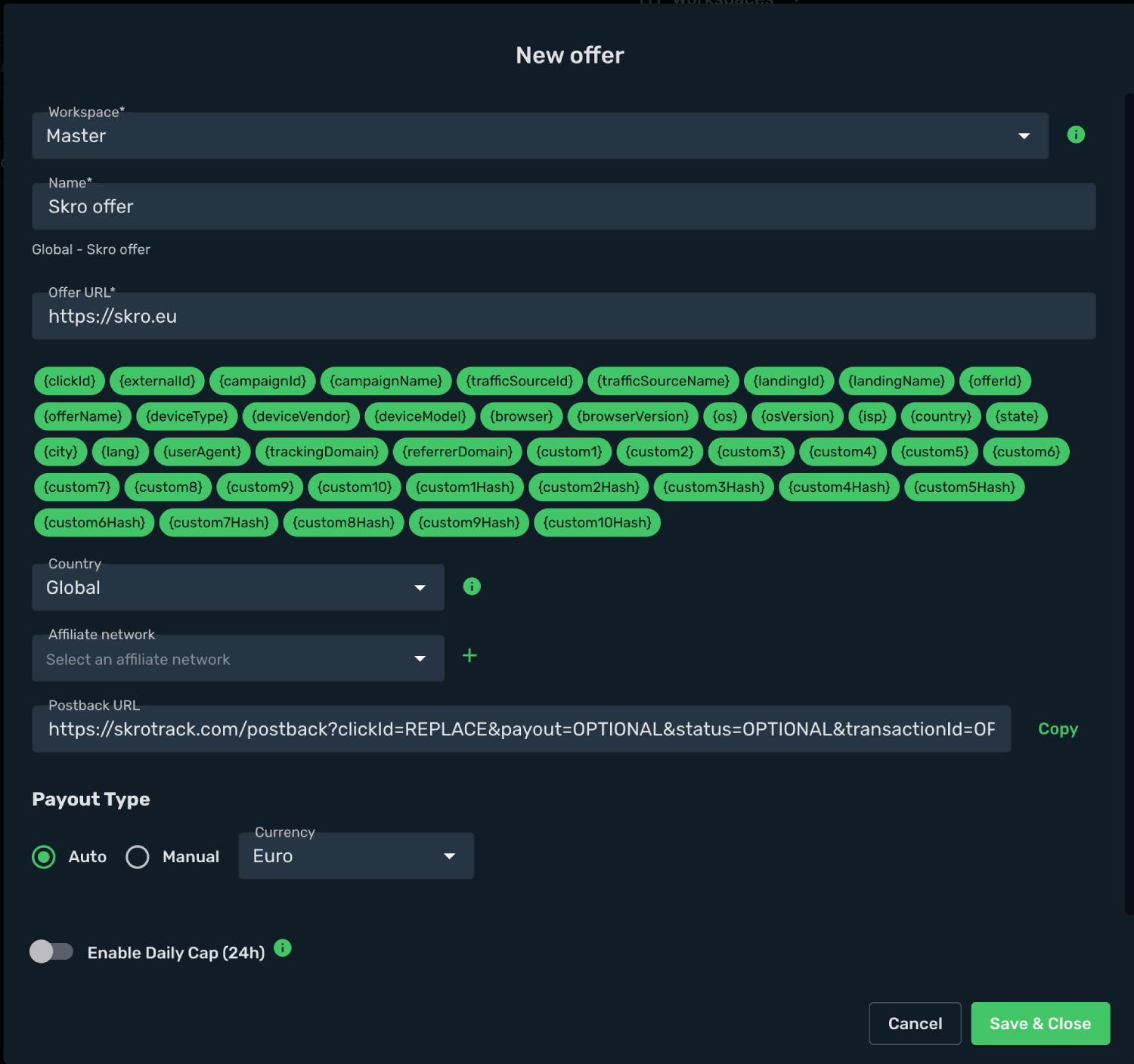
First you will need to add your offer.
- Navigate to the **Offers** view and click **Create**.
- Select workspace.
- Add name.
- Add your offer URL and add macros if needed.
- Click **Save & Close**.
- Navigate to the **Campaigns** view and click **Create**.
- Select your integrated **Traffic Source** as Taboola.
- Select your **Conversion Event Name**. That is needed to send conversion info back to Taboola.
- Cost Model should be **Auto**.
- Select your cost currency.
- Click **Next**

- Select workspace.
- Add descriptive name to your campaign.
- Click **Next**

- Choose your **Destination Type**. In this example we use **flow**
- Choose your redirect mode. In this example we use **redirect 302**
- In given example we use only offers, Switch on **Use only offers** and select your offer. With Taboola you are allowed to use **Redirect** tracking method, so you can add multiple landing pages and offers to your campaign.
- Click **Save**

- Choose the **Redirect** method.
- Copy and paste the Campaign Tracking URL to Taboola.
In given example we have that kind of URL:
```text
https://skrotrack.com/campaign/f83916ca-a95b-4641-8d9b-4d252f82e64b?click_id={click_id}&campaign_id={campaign_id}&site_id={site_id}&ad_id={campaign_item_id}&site={site}&thumbnail={thumbnail}&title={title}&platform={platform}&campaign_name={campaign_name}&site_domain={site_domain}
```

## Step 6. Create a Campaign in Taboola [#step-6-create-a-campaign-in-taboola]
Now you have your campaign URL with tracking parameters added. In the next step you will submit it as your item's URL in Taboola's campaign inventory setup. In order to do that, perform the following steps:
- Sign in to your Taboola account.
- Go to the Campaigns tab.
- Click the **Create** and select the Campaign option from the drop-down menu.

**Campaign Settings** - Provide all required information. This includes:
- Campaign Setup.
- Bidding And Conversion Goal.
- Schedule.
- Campaign Targeting
- Audience Targeting.
- Click **Next**.
**Budget and Bidding** - Provide all required information. This includes:
- Budget
- Tracking
- Profile
You do not need to add anything in the Tracking codes section. All Taboola parameter are already included in the campaign tracking URL that will be added on item level.
Once you have provided the required information, click the **Create & Add Ads**. The Create ads view will appear.
**Create Ads** - Provide a target URL and a creative. In order to do so, perform the steps below:
- Paste the copied campaign tracking URL from Skro into the **Landing page URL** text field.
- Upload a creative or choose one from the stock photo library, provide headlines. Once you set up your ad, click the **Submit**.

Congratulations, you have successfully set up tracking of Taboola traffic with Skro. Each time a visitor clicks on your ad, will be directed to your landing page with Skro's tracking parameters being passed.
## Verify the setup [#verify-the-setup]
Open the generated campaign URL and check that the visit appears in Skro. Confirm that traffic source macros resolve to actual values. If you send conversions back to the source, verify a test conversion in both systems.
If data is missing, check the selected workspace, integration, campaign, and reporting date range. Compare parameter names and macro values with the examples in this guide before repeating the test.
## Related guides [#related-guides]