

Meta Ads automation: practical rules for campaign decisions
Plan Meta Ads rules for spend, approved conversions, ROAS, and schedules. Learn how to choose conditions, test with notifications, and set budget limits in Skro.
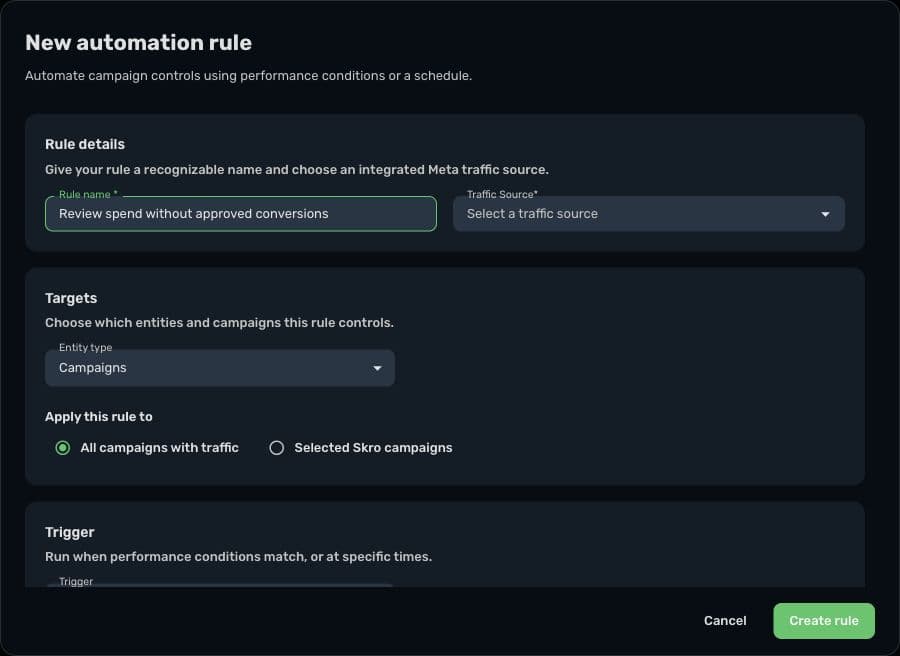
Cost > 50 AND approved = 0In this article
You check the same ads repeatedly: which have spent enough without an approved conversion, which deserve a closer look, and which should run only during a particular window. Automation helps when you can express that decision clearly and trust the data behind it.
A useful rule states what to evaluate, over which period, under which conditions, and what action to take. It also has limits. An automated budget change should be something you can explain from its inputs and review in the results.
Which decisions are ready for automation?
Begin with a decision you already make consistently. If you change the criteria every time you open the report, write down the decision before building a rule.
Skro's automation supports connected Meta campaigns, ad sets, and ads on paid plans. Rules can pause or enable entities, adjust campaign or ad-set daily budgets, or send an in-app notification. Individual ads do not have the budget actions available for campaigns and ad sets.
The automation guide covers setup and access requirements. This article focuses on choosing rules that fit the decision you want to make.
Start with these six rule patterns
These are planning examples, not recommended thresholds for every account. Select the relevant entity level, reporting period, currency, and conversion definition for your own campaigns.
| Decision | Example conditions or trigger | First action to test |
|---|---|---|
| Investigate spend without outcomes | Cost exceeds a chosen amount AND approved conversions equal zero. | Send notification only. |
| Review expensive acquisition | CPA exceeds a target AND approved conversions exceed a minimum sample. | Send notification only. |
| Protect a minimum return | Spend exceeds a minimum AND ROAS is below your chosen floor. | Notify first; consider Pause after validation. |
| Review potential budget increases | ROAS exceeds a target AND approved conversions exceed a minimum. | Notify first; later consider a bounded daily-budget increase. |
| Reduce exposure to a weak ad set | Cost exceeds a minimum AND campaign profit is below a chosen level. | Notify first; later consider a bounded daily-budget decrease. |
| Stop or resume delivery at a known time | A scheduled action on chosen weekdays and at the chosen time. | Pause or Enable within a reviewed scope. |
The sample condition is essential. A low CPA from one conversion is not the same evidence as a low CPA from a mature reporting period with many approved conversions. Likewise, a recent zero-conversion period may simply be waiting for the network's approval or reporting process.
Worked example: notify about spend without approved conversions
Suppose an illustrative Meta account reports in euros. You want a reminder when an ad spends more than €50 today without an approved conversion. You do not want the first version of the rule to pause anything.
| Setting | Example choice |
|---|---|
| Entity type | Ads |
| Scope | Selected Skro campaigns |
| Condition logic | Match ALL conditions: AND |
| Condition 1 | Cost is greater than 50; Today |
| Condition 2 | Conversions Approved is equal to 0; Today |
| Check frequency | Every 1 hour |
| Run window | Continuously |
| Action | Send notification only |
Now compare three fictional ads in that scope:
| Ad | Today's cost | Approved conversions | Matches? |
|---|---|---|---|
| A | €65 | 0 | Yes: both conditions match. |
| B | €80 | 2 | No: the approved-conversion condition does not match. |
| C | €20 | 0 | No: the cost condition does not match. |
Changing AND to OR would change the meaning considerably. Ad C would match because its approved conversions equal zero, even though it has not reached the spend threshold. Ad B would match because of its cost. Choose the logic deliberately.
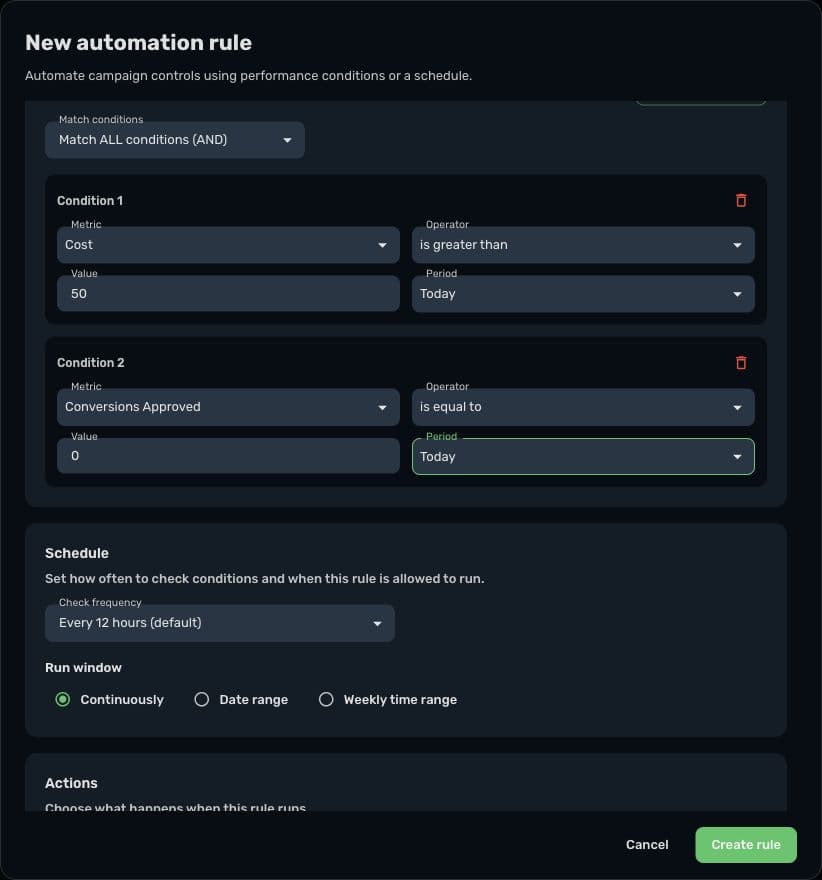
Review the notifications against the same reporting period. Once the matches reflect the intended decision, you can consider a delivery action. The example's €50 threshold is a demonstration, not a universal stopping point.
Keep reporting period, frequency, and schedule separate
These settings answer different questions:
- Reporting period: which results should the rule evaluate?
- Check frequency: how often should a metric-based rule evaluate those results?
- Run window: during which dates or weekly time ranges may the rule run?
A rule can check every hour while evaluating the last three days. Checking more often does not make delayed revenue arrive sooner, and a longer period does not restrict the rule to running once during that period.
Skro also supports scheduled actions without metric conditions. Use that trigger when the decision is time-based, such as pausing a selected scope at a chosen time. Review the displayed account timezone rather than assuming that a scheduled time uses your computer's timezone.
Put a boundary around budget changes
For campaign and ad-set budget actions, configure the required maximum or minimum daily budget. Check whether your change is a percentage or a fixed amount.
For example, increasing an €80 daily budget by 10% produces €88 for one eligible change. That calculation does not mean an €80 campaign should be scaled, or that repeated evaluations are harmless. Review the rule's execution behavior and history before choosing its frequency and limits.
Use a small selected scope first. Avoid overlapping rules that attempt conflicting actions on the same entities. An action that succeeds technically can still be a poor business decision if the reporting period is incomplete or the threshold is unsuitable.
Review the action, not just the rule's enabled switch
Skro's action logs expose execution details and external action results, including Success, Failed, or Skipped outcomes. Check the recorded entity and response when investigating a particular result. Log times are displayed in UTC, which may differ from the reporting timezone shown in the editor.
Notification-only rules do not change Meta entities, so a lack of external action rows is not enough to diagnose a failure. Check the execution and notification together.
If the rule is making unexpected decisions, return to its inputs: campaign scope, entity type, condition logic, periods, and data freshness. The reporting discrepancy checklist can help you resolve differences before relying on the numbers for automation.
Build one rule you can verify
Choose one repeatable decision and document the expected matches before enabling it. Start with Send notification only, compare the results with your report, and move to a bounded action only when the behavior is clear.
Follow the Meta Ads automation setup guide to build the rule. If your account is not connected yet, begin with the Meta Ads integration. The automation solution provides an overview of the supported workflow.